Customizing Your Trust Settings
Fine-tune how the extension calculates trust. Adjust weights, thresholds, and strategies to match your preferences.
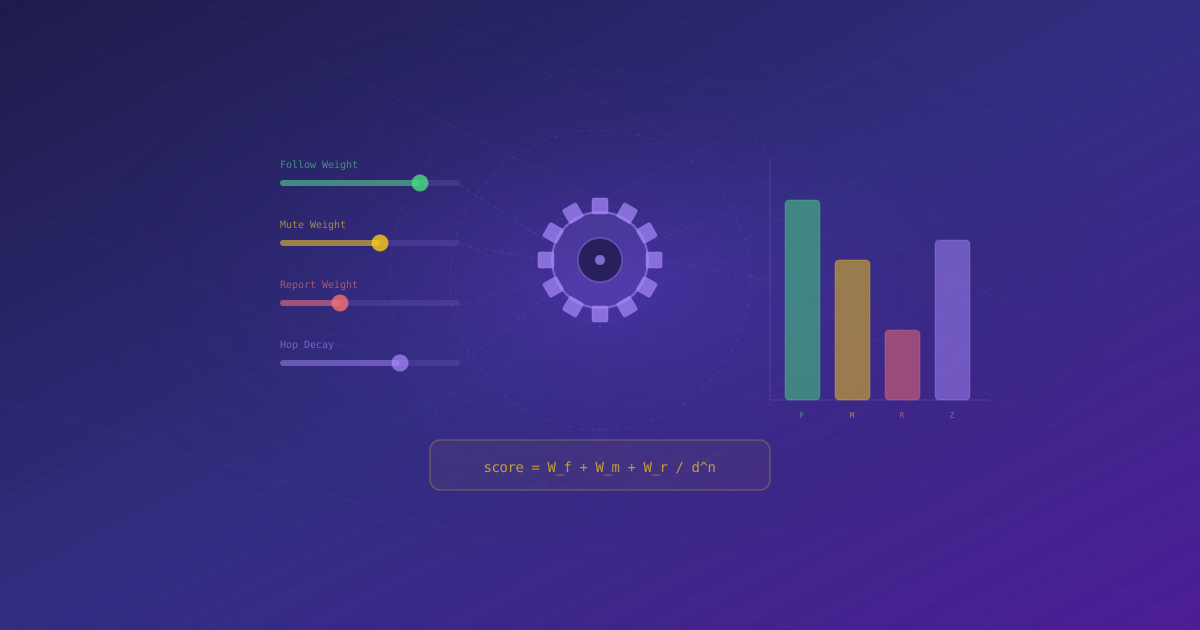
The default trust settings work well for most people, but the extension gives you full control over how trust is calculated. This guide walks you through the trust formula, how to adjust weights and thresholds, and when different strategies make sense.
The Trust Formula
At its core, the extension assigns each user a trust score based on their relationship to you in the social graph. The formula considers three primary inputs:
- Hop distance — how many follow-connections separate you from the user.
- Path multiplicity — how many independent paths connect you.
- Path bonus — extra trust credit for each additional path connecting you.
The result is a normalized score between 0 and 100%.
You do not need to understand the math to use the extension effectively. The defaults are tuned for a balanced trust network. Only adjust these if you have a specific reason.
Adjusting Trust Settings
Open the extension and click the settings icon to access Trust Settings. You'll see two panels: a quick sensitivity slider and detailed numeric controls.
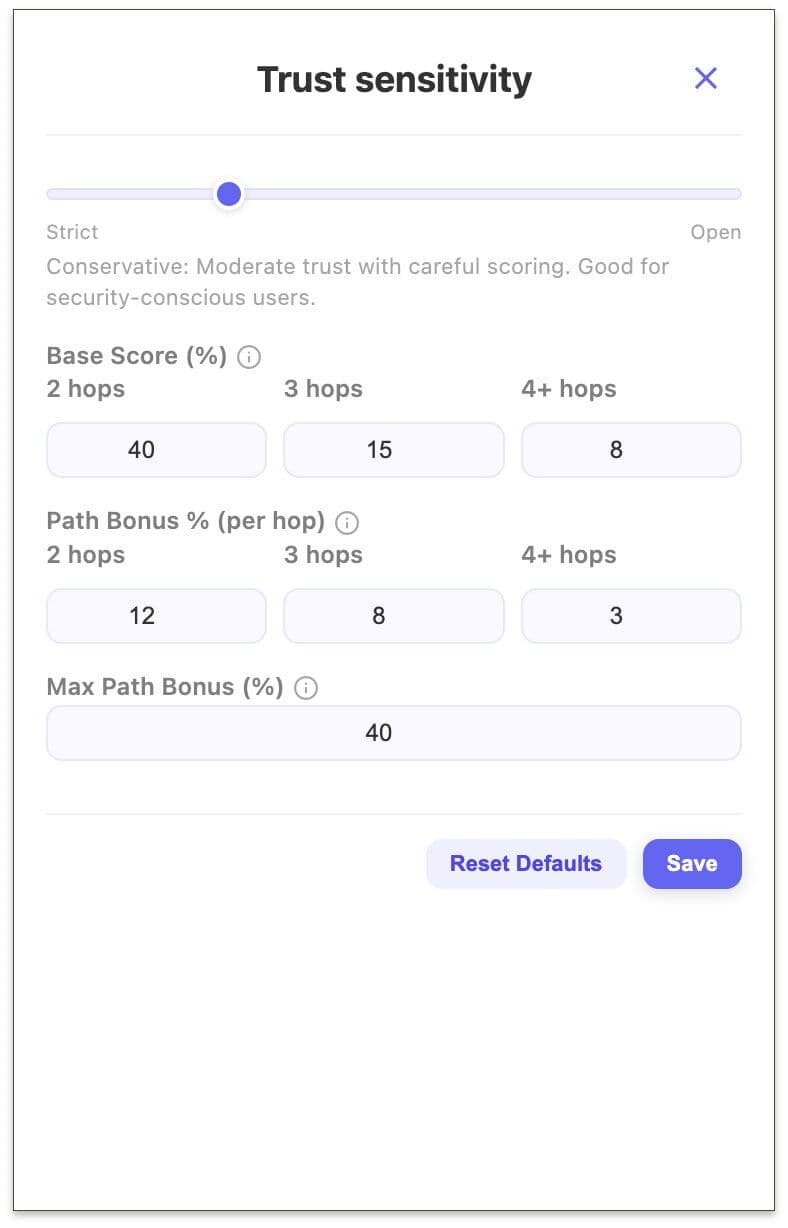 The Trust Settings panel — Base Score per hop distance, Path Bonus per hop, and Max Path Bonus
Trust Sensitivity Slider
The slider at the top offers a fast way to move between presets:
- Strict — tight trust circle, high standards. Only well-connected users score meaningfully.
- Balanced — the default. Standard scoring for most users. Reasonable trust with path bonus.
- Open — broad trust. Even distant connections carry weight.
Base Score (%)
Controls how much base trust a user receives by hop distance, before any path bonus is applied:
| Distance | Default |
|---|---|
| 2 hops | 50% |
| 3 hops | 25% |
| 4+ hops | 10% |
Lower these values to tighten your trust circle. Raise them to be more inclusive.
Path Bonus % (per hop)
Each additional independent path connecting you to a user adds extra trust. The bonus decreases with distance:
| Distance | Default bonus per path |
|---|---|
| 2 hops | +15% |
| 3 hops | +10% |
| 4+ hops | +5% |
A user reached through 5 different 2nd-degree contacts gets 5 × 15% = 75% path bonus on top of their base score.
Max Path Bonus (%)
Caps the total path bonus at 50% by default. This prevents extremely well-connected users from scoring disproportionately high regardless of how many paths connect them.
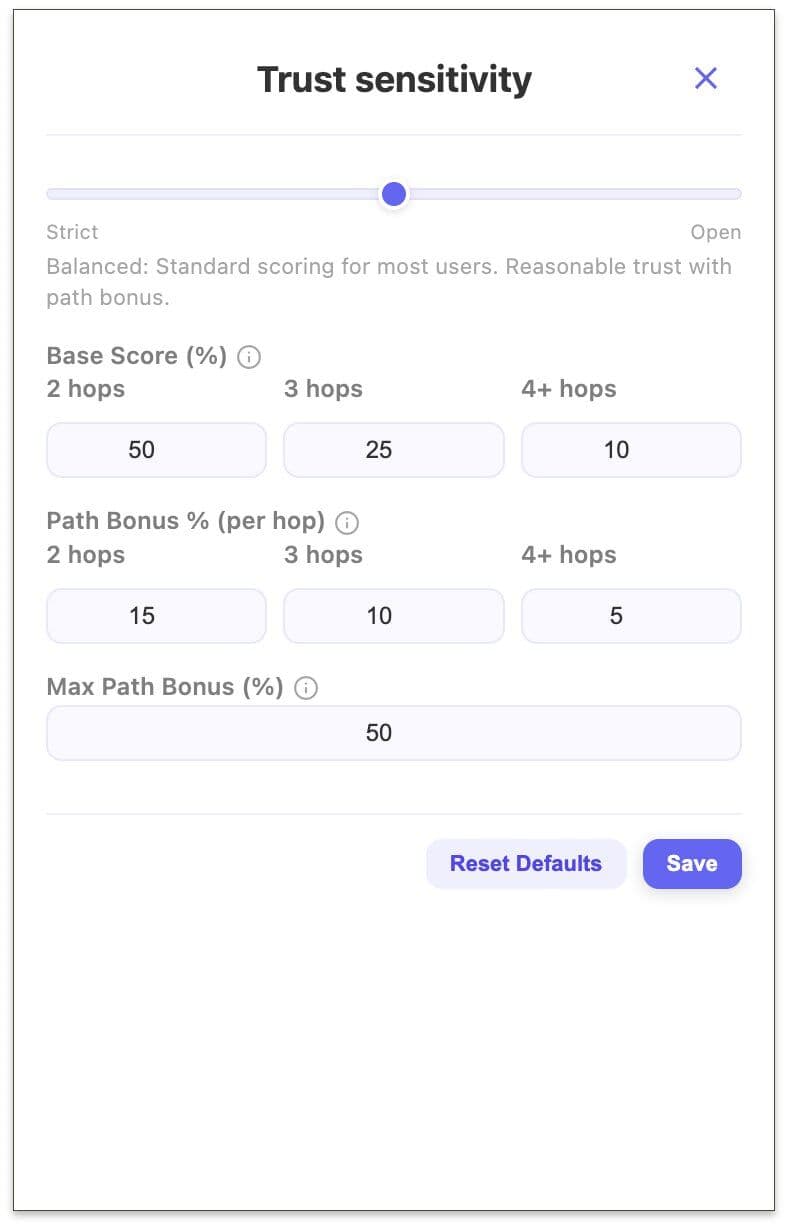 The Trust Sensitivity modal — slider from Strict to Open, with Base Score, Path Bonus, and Max Path Bonus fields
Which Preset Should I Use?
The Trust Sensitivity slider maps directly to three usage profiles:
- Strict — you want a tight, high-signal feed. Only well-connected users score meaningfully. Good for spam filtering and focused interaction.
- Balanced — the default. Works well for most people. Direct follows + friends-of-friends with reasonable path bonuses.
- Open — you're exploring the network and want broader coverage. More noise, but more discovery.
Start with Balanced. If your feed feels too noisy, move toward Strict. If you want to discover more people, move toward Open. You can always fine-tune the individual values manually after picking a preset.
Changes to trust settings recalculate your entire graph. Give the extension a moment to reprocess after adjusting values. If you want to start fresh, use the Reset to Defaults button at the bottom of the Trust Settings panel.
What's Next?
See your customized trust settings in action by exploring the WoT Playground. Or continue setting up the extension by connecting a wallet.