The WoT Playground
The WoT Playground lets you explore your trust graph visually. Filter by hops, search for users, and understand your network at a glance.
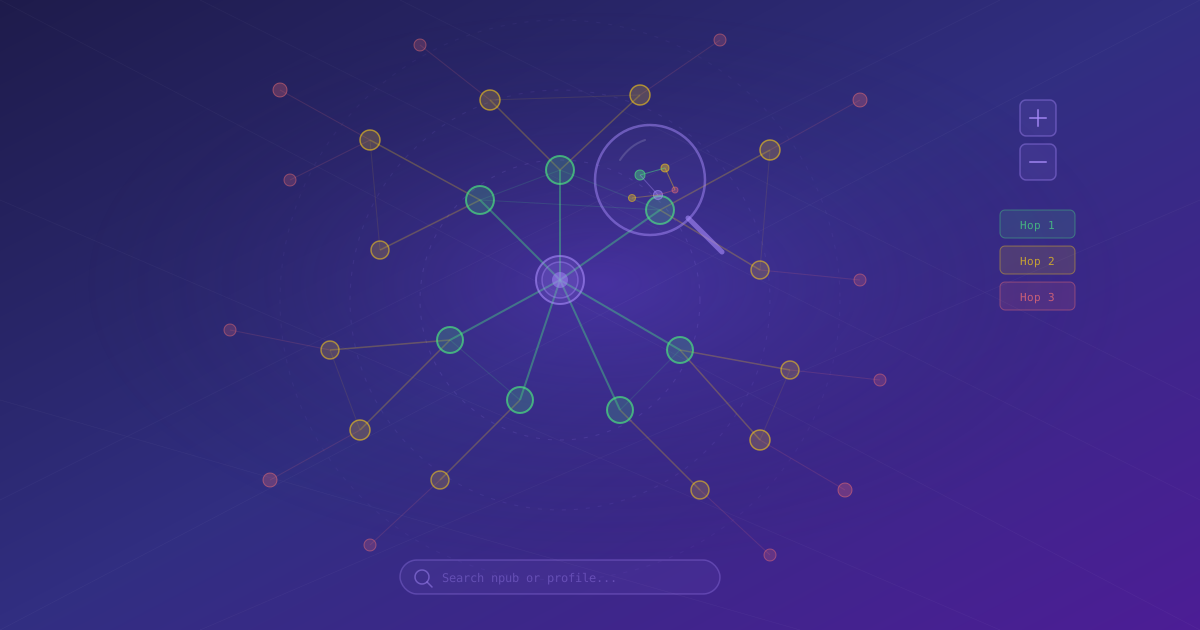
The WoT Playground is an interactive visualization of your entire trust network. It takes the abstract concept of a Web of Trust and makes it tangible — you can see exactly how you connect to any user on Nostr, explore clusters of trust, and discover patterns in your social graph.
Accessing the Playground
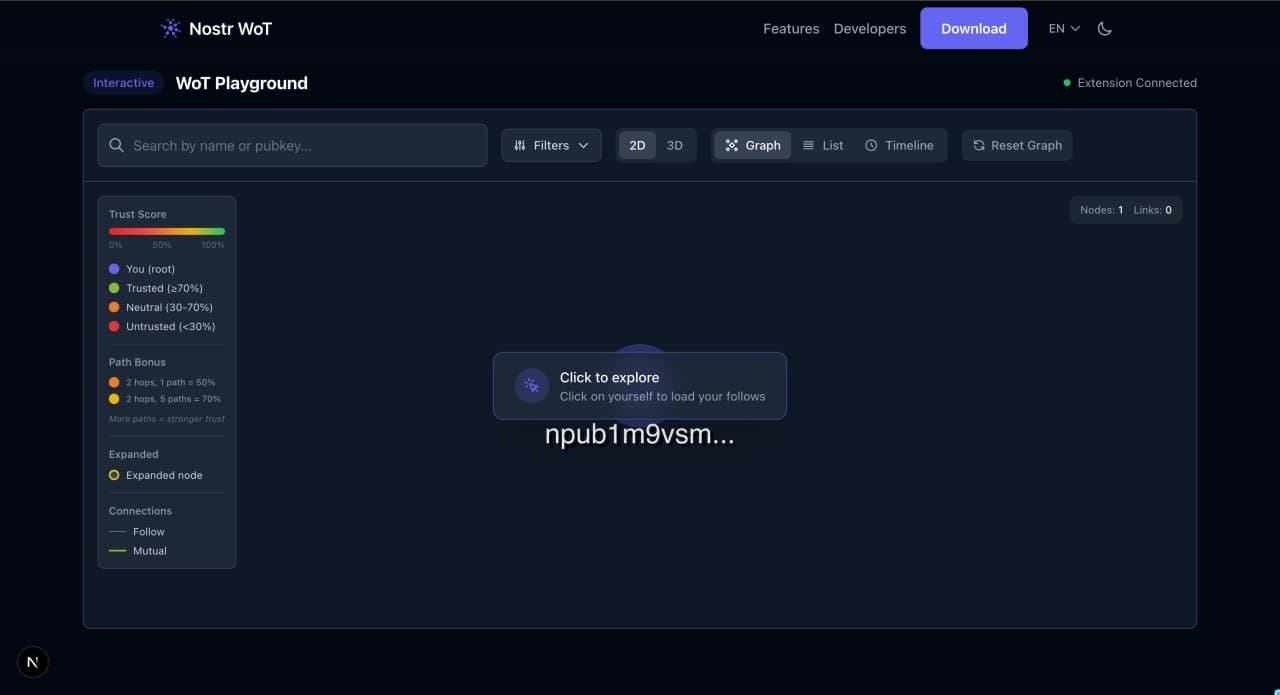 WoT Playground initial state — click the root node to start exploring
There are two ways to open the Playground:
- From the extension — click the extension icon and select Playground from the navigation menu.
- From the website — visit the WoT Playground page directly.
The Playground loads your trust graph data from the extension. If you are not signed in or the extension is locked, you will be prompted to unlock it first.
The Trust Graph Visualization
The main view is an interactive graph where nodes represent Nostr users and edges represent follow relationships.
Reading the Graph
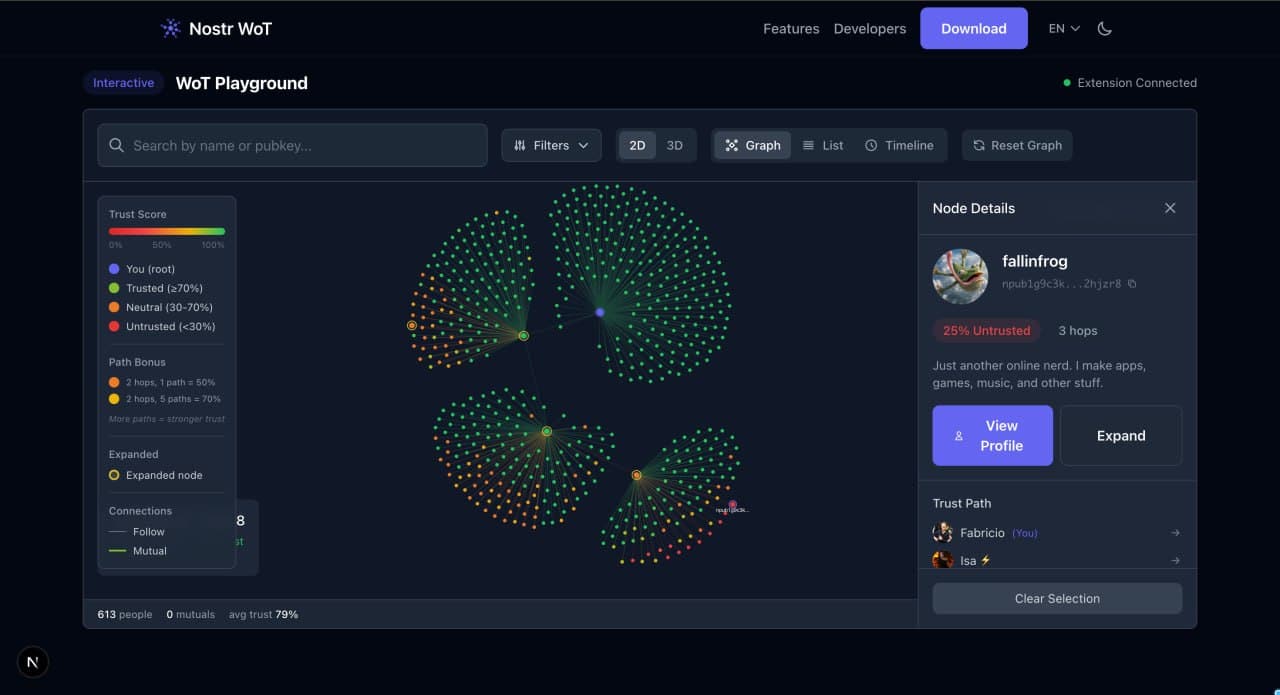
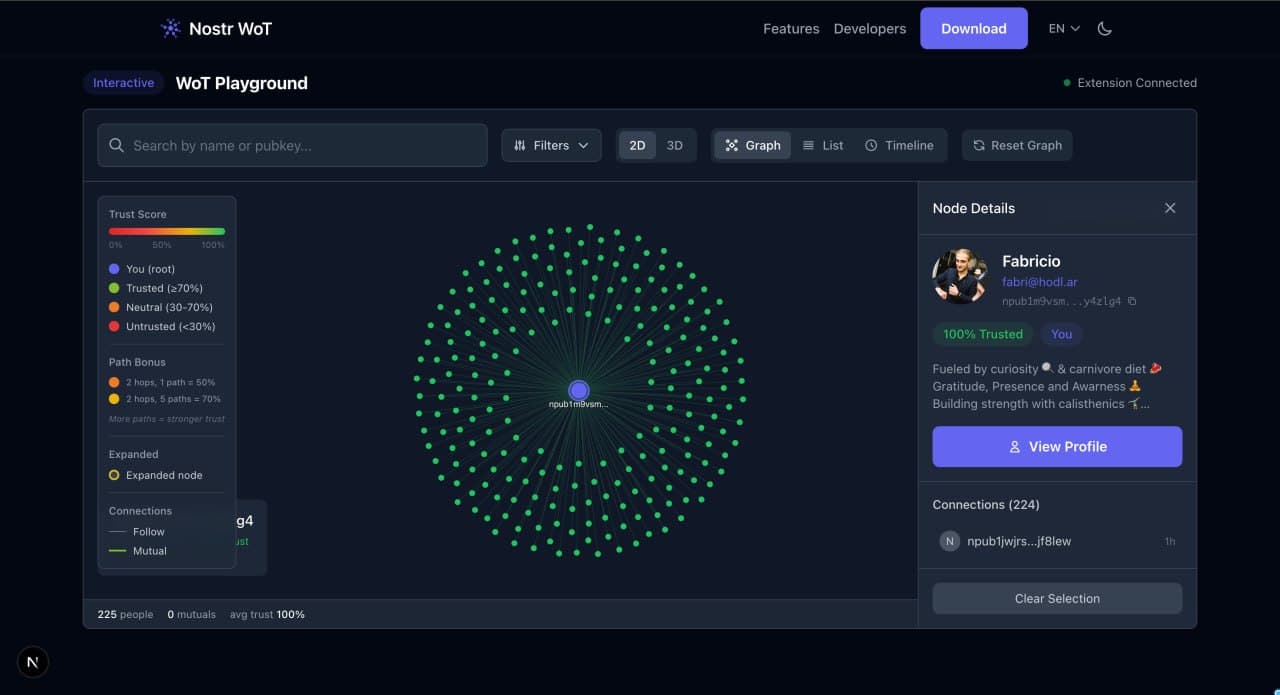 Trust graph with hop-1 follows expanded — color-coded by trust score
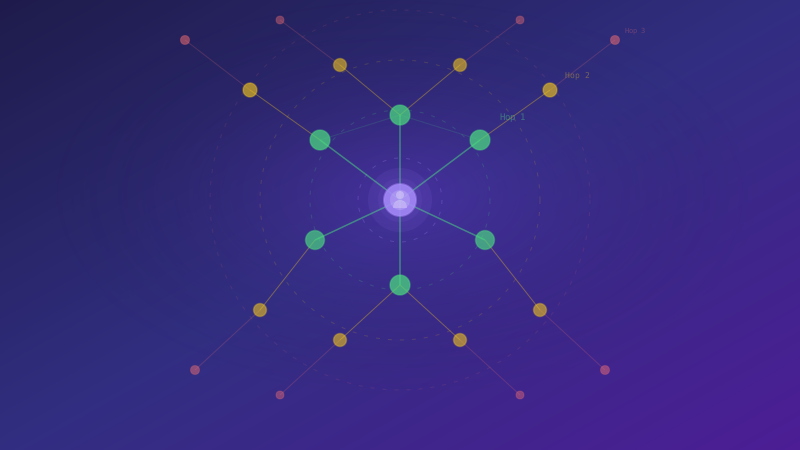
- Your node sits at the center, highlighted distinctly.
- 1st-degree connections (direct follows) appear closest to you, typically in a bright color.
- 2nd-degree connections form the next ring, in a slightly muted tone.
- 3rd-degree connections are at the outer edges, more faded.
- Edge lines connect nodes to show follow relationships. Thicker or brighter lines may indicate stronger trust scores.
Click and drag to pan around the graph. Use your scroll wheel or pinch gesture to zoom in and out. Click on any node to see details about that user.
Node Details
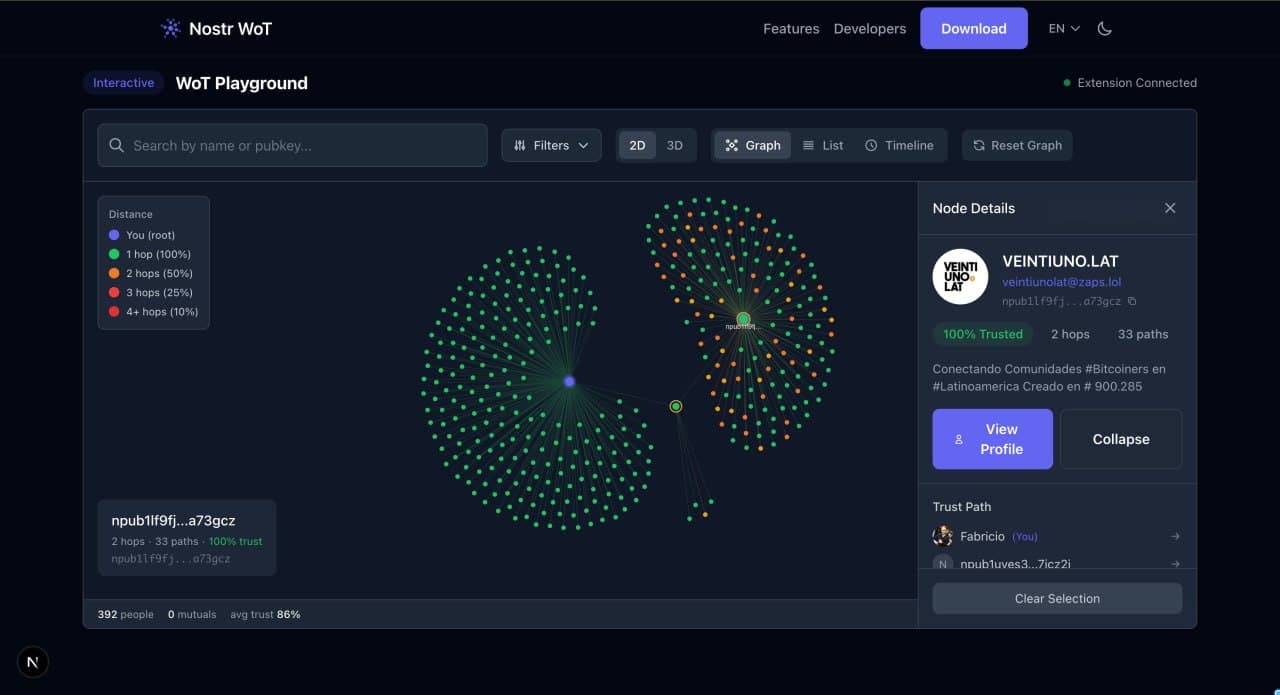 Node detail panel showing trust score, hop distance, and trust path
Click on any node to open a detail panel showing:
- Profile information (name, avatar, npub).
- Trust score relative to you.
- Hop distance.
- Number of paths connecting you.
Click View Profile to open a full profile preview:
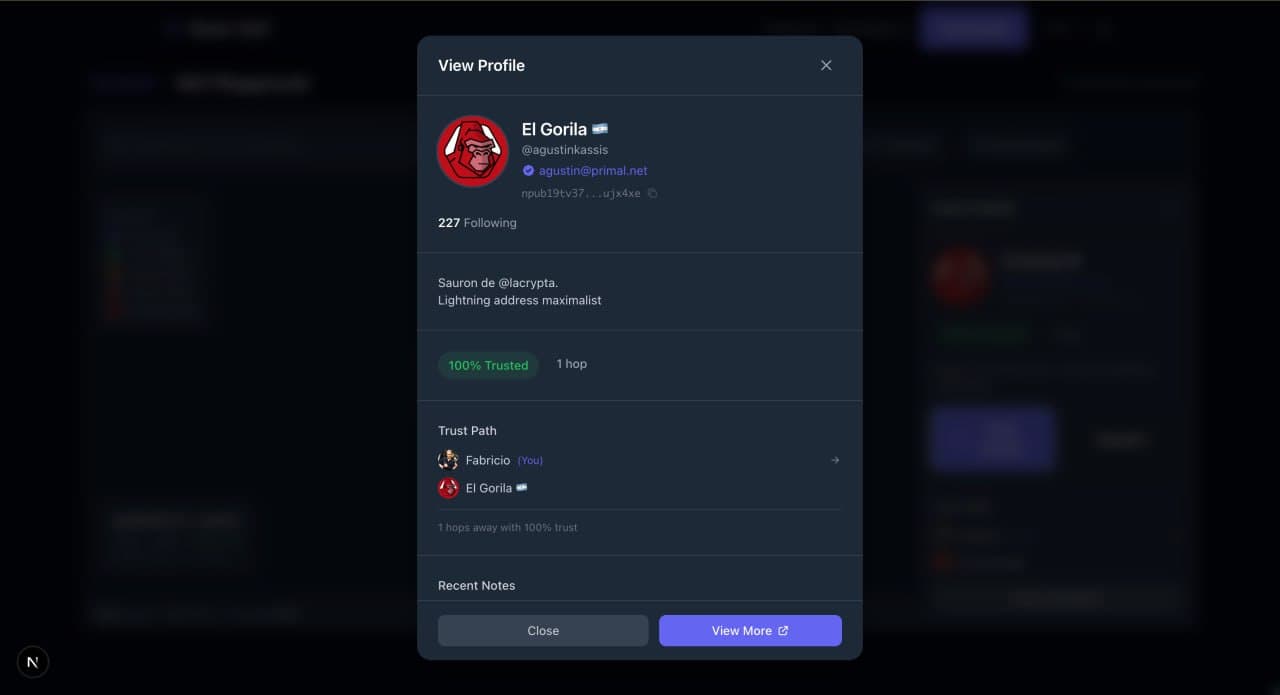 Profile modal showing avatar, bio, trust path and recent notes
- Profile information (name, avatar, npub).
- Trust score relative to you.
- Hop distance.
- Number of paths connecting you.
- Mutual follows — people you both follow.
This is useful for understanding why someone has a particular trust score and how they connect to your network.
Filtering and Searching
The Playground includes tools to narrow your view and find specific information.
Filtering by Hops
 Filters sidebar with multiple layers expanded and gateway nodes visible
Use the hop filter to show only connections at a specific distance:
- 1 hop — shows only your direct follows. Useful for reviewing your inner circle.
- 2 hops — adds friends-of-friends. This is where most of your day-to-day interactions happen.
- 3 hops — the full graph. Shows the outer boundary of your trust network.
Toggle these filters using the controls in the sidebar or toolbar.
List View
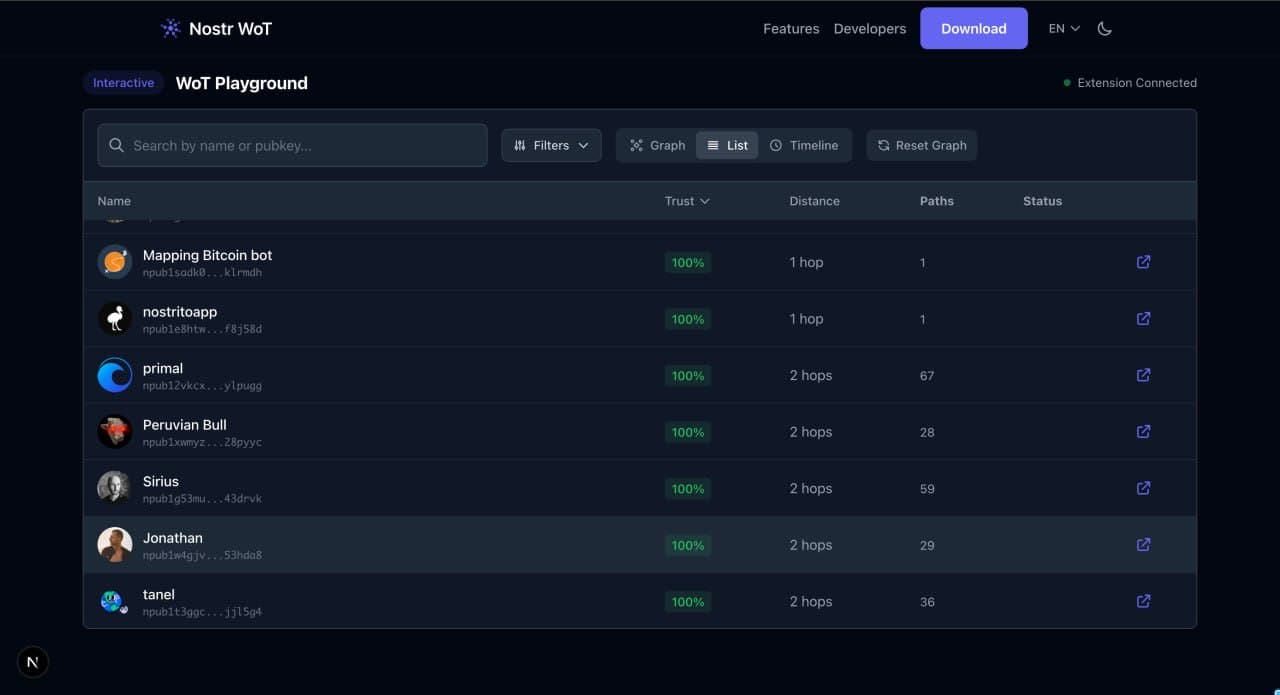 List view showing all nodes sorted by trust score with distance and paths
Switch to List view to see all nodes in a sortable table. You can sort by trust score, distance, or name — useful for scanning your full trust network at a glance.
Searching for Users
Type a name, npub, or NIP-05 identifier into the search bar. If the user is in your trust graph, the visualization highlights their node and shows the path between you.
If they are not in your graph, the search tells you so — which itself is useful information. An unknown user means they have no connection to your network within the configured hop distance.
Analyzing Your Network
Beyond browsing, the Playground helps you understand the structure of your trust network.
Expanding Layers
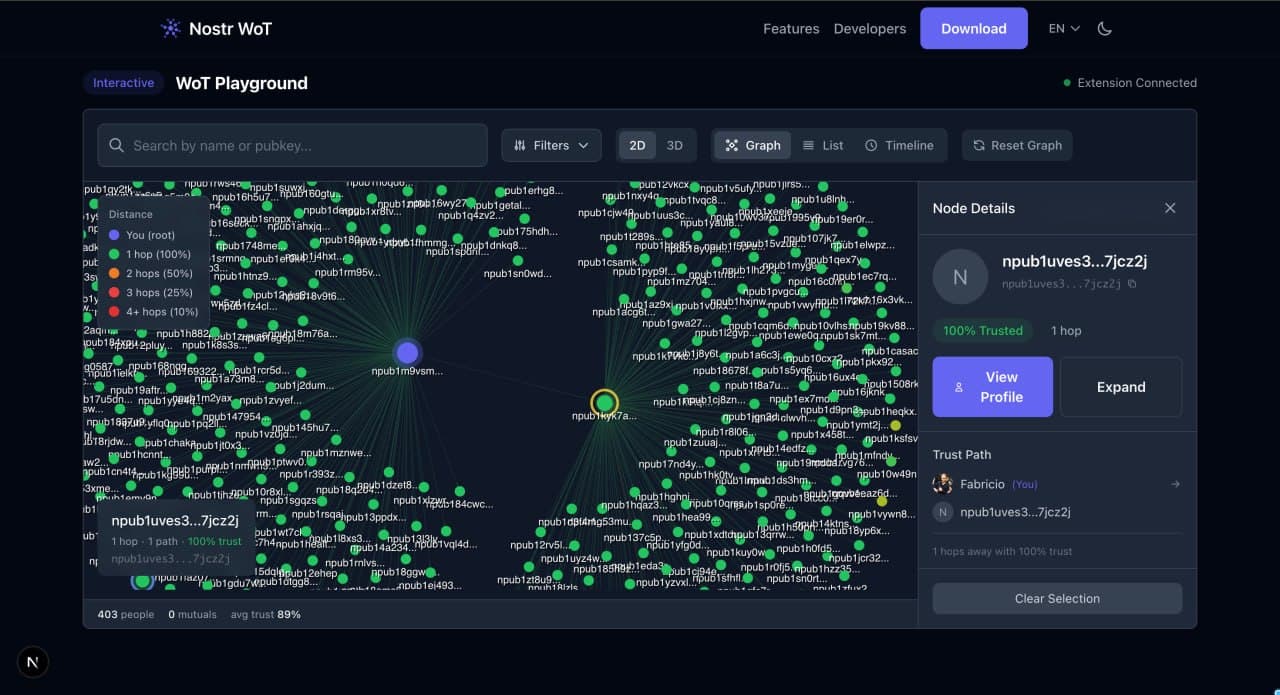 Expanded node (gold ring) with its hop-2 follows orbiting around it
When you expand a node, it gets a gold ring to mark it as a gateway — the entry point into a new layer of your network. Its follows appear as a new orbit around it. You can expand multiple nodes to explore different branches of your Web of Trust.
Cluster Detection
The visualization often reveals clusters — groups of densely connected users. These typically correspond to communities. You might see a cluster of Bitcoin developers, another of artists, and another of local friends. The visual grouping helps you understand the different social circles that make up your Web of Trust.
Bridge Users
Some nodes connect otherwise separate clusters. These bridge users span different communities in your network and often have high trust scores due to multiple independent paths. If your graph is small or sparse, consider following more people to strengthen your Web of Trust.
The Playground is a read-only visualization. Nothing you do here changes your trust settings or follow list. Explore freely.
What's Next?
Now that you have explored your trust graph, you might want to customize your trust settings based on what you discovered. Or head back to the getting started guide to review the fundamentals.