Site Permissions
The extension gives you granular control over what each website can do. Learn how per-site permissions keep your keys and sats safe.
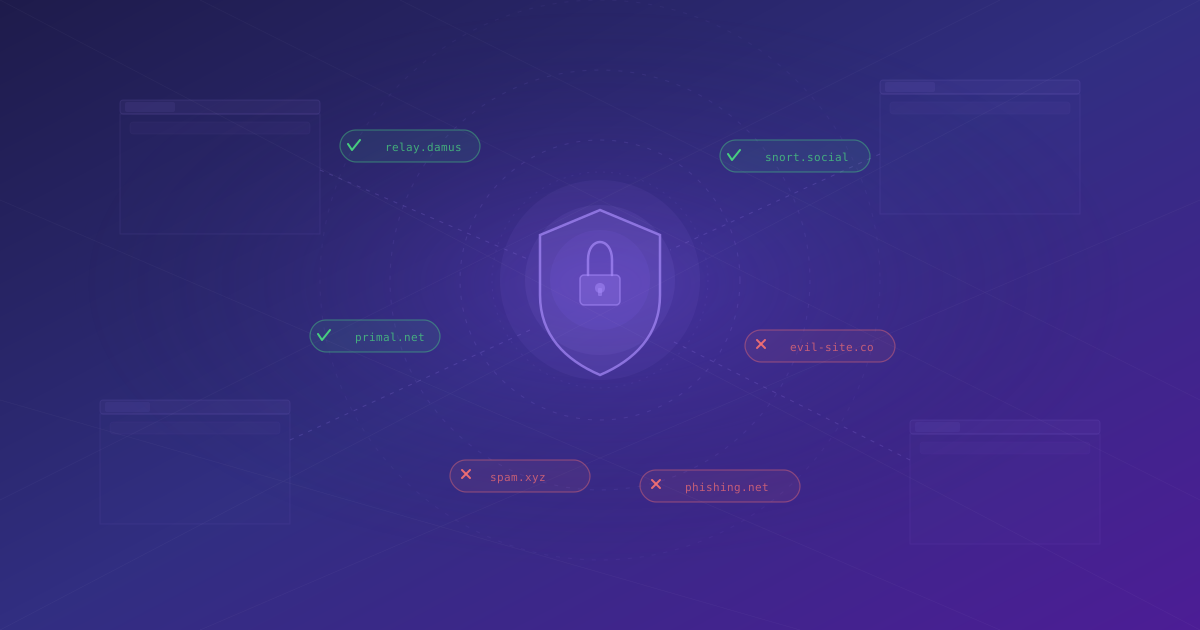
Every website that interacts with the extension needs your permission. The extension does not give blanket access to your keys or wallet — each site gets its own permission scope. This guide explains how to manage those permissions effectively.
How Permissions Work
When a website tries to access the extension's NIP-07 signer or WebLN provider, the extension checks whether that site has permission. If it does not, you see a prompt asking you to approve or deny the request.
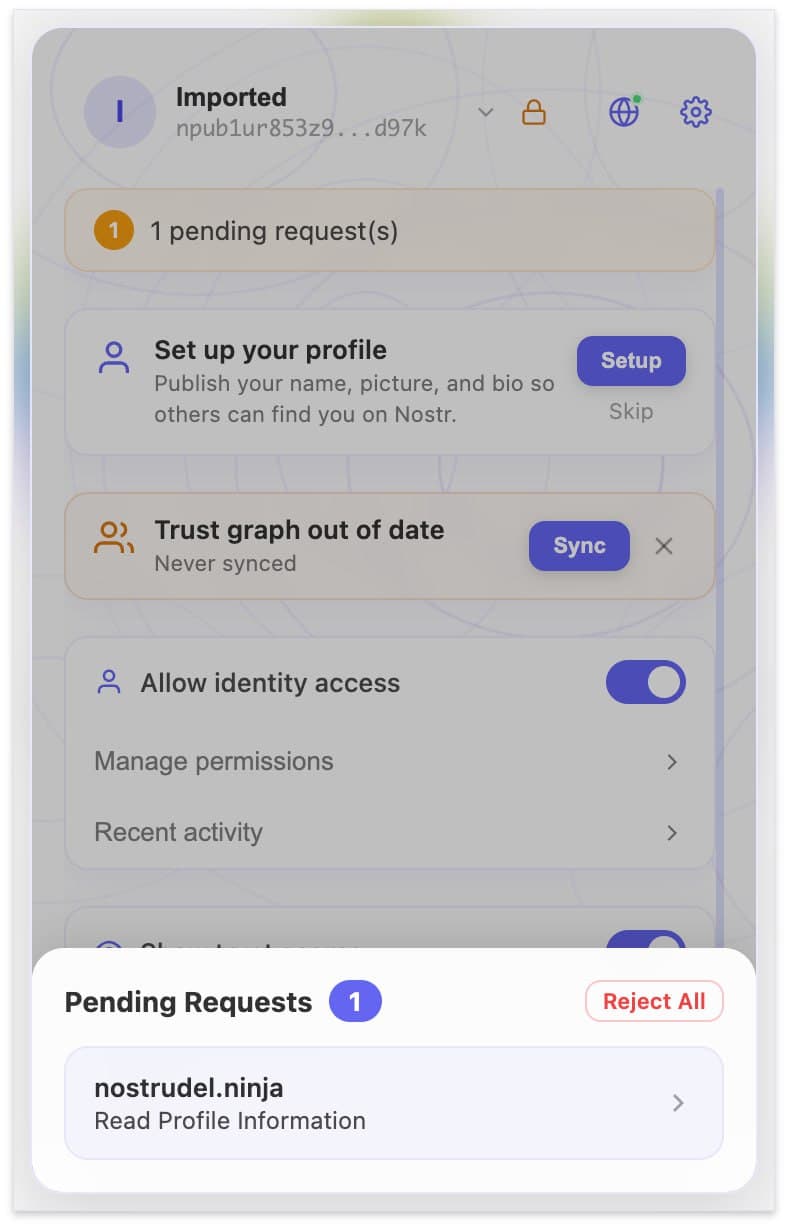 Pending permission requests appear at the bottom of the popup — here nostrudel.ninja is asking to read your profile information
Each permission decision is stored per-site. Approving signing on Primal does not automatically grant signing on Snort. You build up a whitelist of trusted sites, one at a time.
Permission Types
The extension manages several distinct permissions for each site.
Read Public Key
Allows the site to see your public key (npub). This is the most basic permission — the site can identify you but cannot do anything on your behalf.
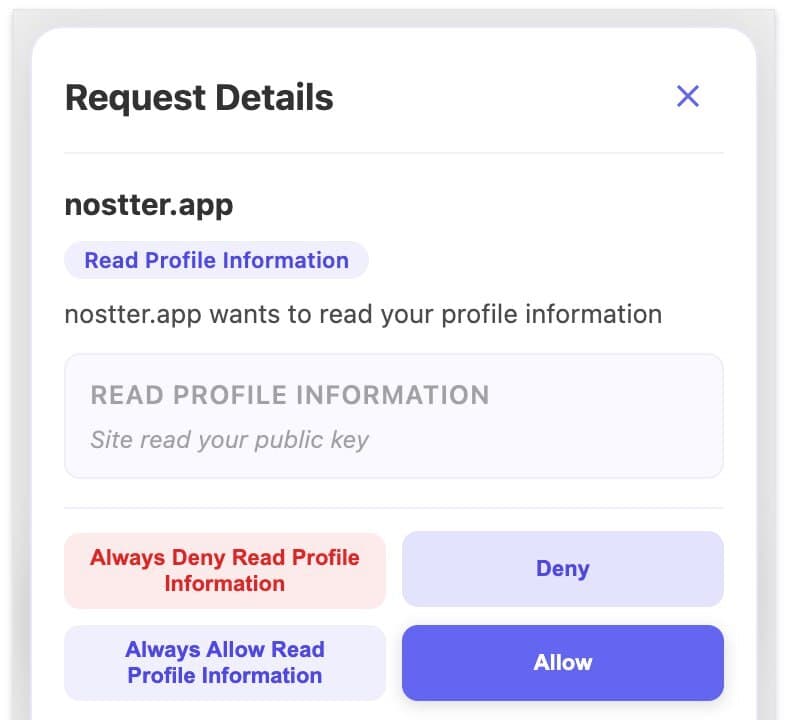 The Request Details popup for a "Read Profile Information" request — shows the site, permission type, what it does, and four response options
Sign Events
Allows the site to request event signatures through NIP-07. This means the site can ask you to sign notes, profile updates, reactions, and other Nostr events. You still see a confirmation prompt for each signing request unless you enable auto-approve for that site.
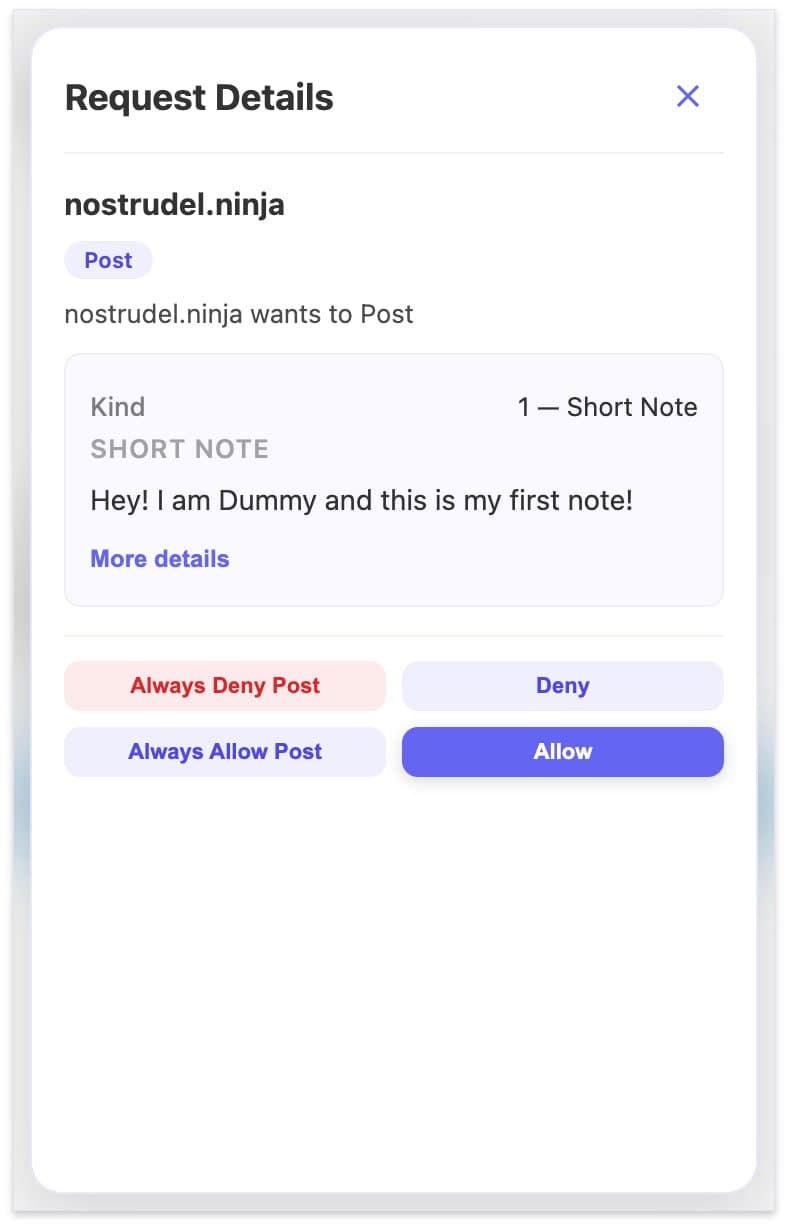 When a site requests to sign an event, you see the full request details — event kind, content preview, and four options: Always Deny, Deny, Always Allow, or Allow once
Encrypt and Decrypt
Allows the site to request NIP-04 or NIP-44 encrypted direct messages. The site can ask the extension to encrypt a message to a specific recipient or decrypt an incoming message.
WebLN Payments
Allows the site to request Lightning payments through the WebLN provider. When granted, the site can present invoices for you to pay — subject to your auto-approve threshold.
You can grant some permissions while denying others. For example, you might let a site read your public key and request signatures, but deny it WebLN access if you do not want it to prompt payments.
Managing Site Permissions
Viewing Granted Permissions
- Open the extension and click Settings.
- Navigate to Site Permissions (or Permissions).
- You will see a list of all sites that have been granted any permission, along with what each site can do.
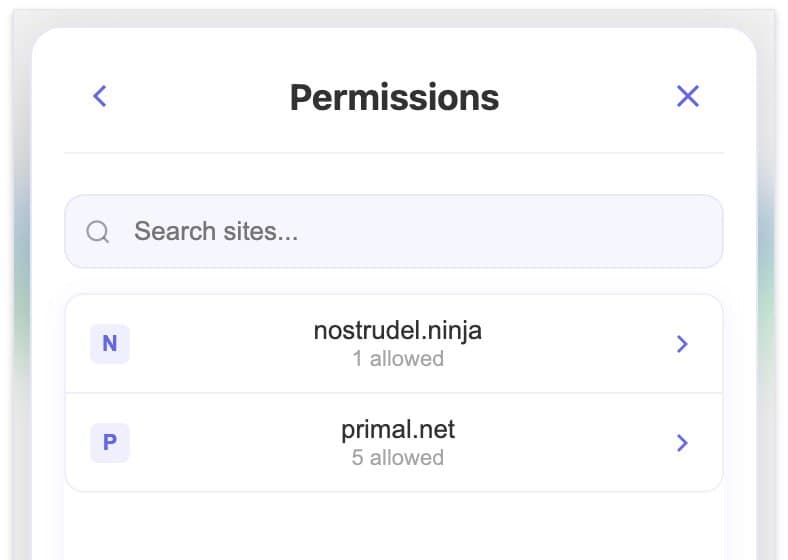 The Permissions panel lists every site that has been granted access, with a count of allowed permissions per site
Revoking Permissions
If you want to remove a site's access:
- Find the site in the permissions list.
- Click the site name to expand its details.
- Toggle off individual permissions or click Revoke All to remove all access.
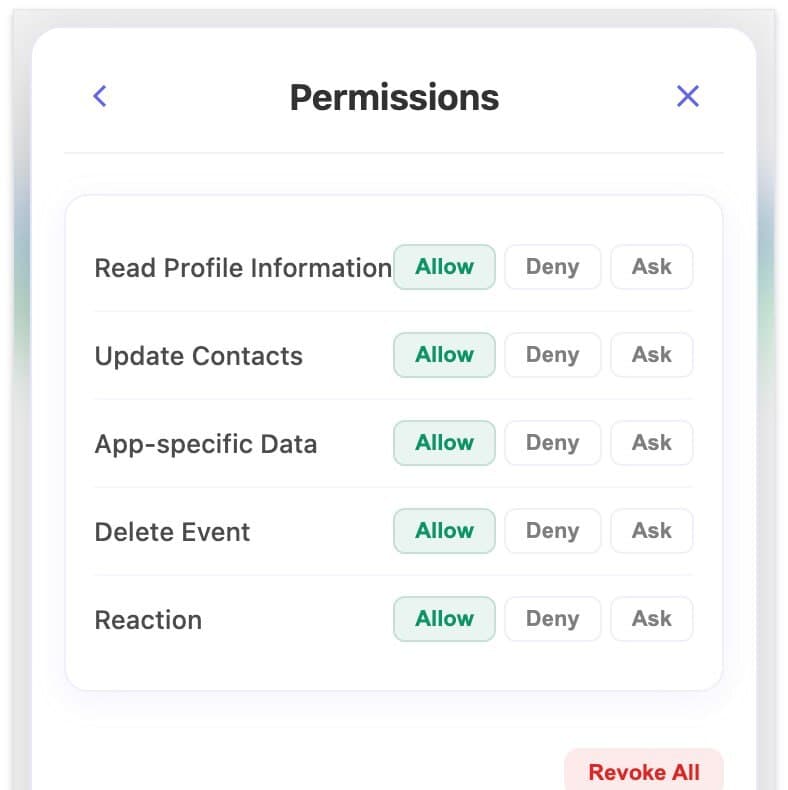 Each site's permission detail shows granular controls — Allow, Deny, or Ask per action type, plus a Revoke All button
4. The change takes effect immediately. The site will need to request permission again on its next attempt.
Each site's permission detail shows granular controls — Allow, Deny, or Ask per action type, plus a Revoke All button
4. The change takes effect immediately. The site will need to request permission again on its next attempt.
Temporary vs. Permanent Permissions
When you see a permission prompt, you typically have two options:
- Allow once — grants the permission for this session only. When you close the tab or restart the browser, the site will need to ask again.
- Always allow — permanently grants the permission for this site. It persists across sessions.
Use "Allow once" for sites you do not visit regularly. Use "Always allow" for your daily-use Nostr clients.
Best Practices for Security
Only grant the permissions a site actually needs. A Nostr client needs signing access, but a read-only explorer only needs your public key. Review your permissions list periodically and revoke access for sites you no longer use.
If a site you have never heard of requests signing or payment permissions, deny it and investigate first. Legitimate Nostr clients are well-known.
If a site behaves unexpectedly after granting permissions — like triggering payments you did not initiate — immediately revoke all its permissions and lower your auto-approve threshold.
Secure Connections Only
The extension only exposes the NIP-07 and WebLN APIs on secure (HTTPS) connections. This prevents man-in-the-middle attacks from intercepting communication between the site and the extension.
What's Next?
With your permissions locked down, explore the WoT Playground to visualize your trust network. Or revisit managing your identity to review your key security practices.