Managing Your Identity
Your Nostr identity is the foundation of everything in the extension. Learn to manage your keys, profile, and signer settings.
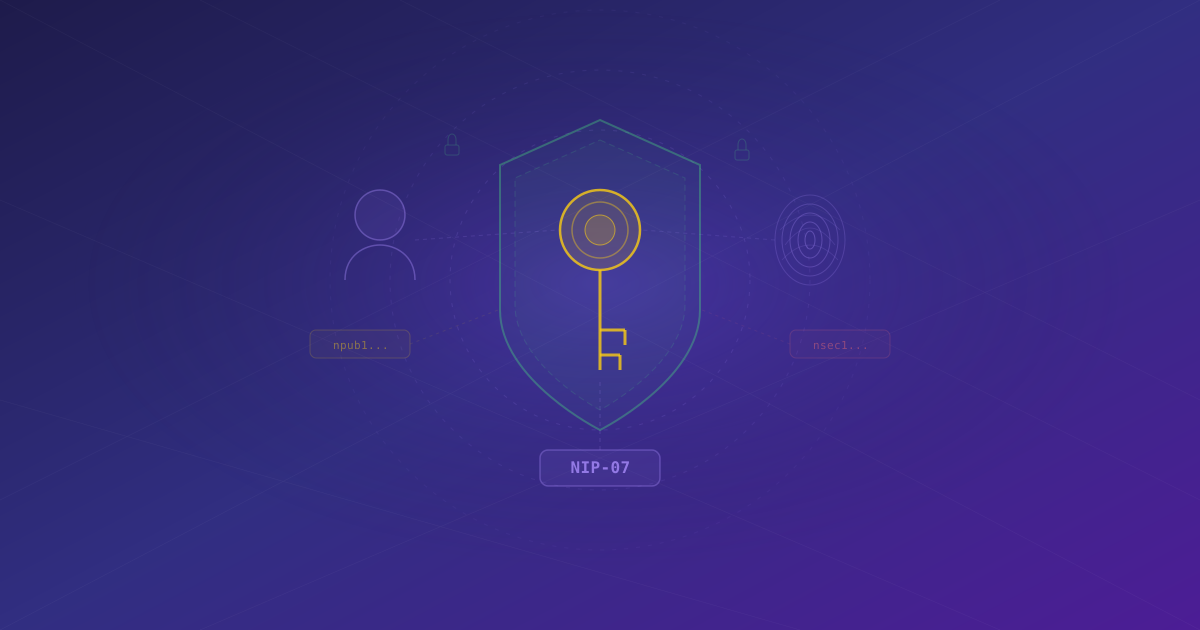
Your Nostr identity is the anchor for everything else in the extension — your trust network, your wallet, your permissions. This guide covers how to manage that identity, keep your keys secure, and use the NIP-07 signer that lets websites interact with your Nostr account.
NIP-07 Signer Support
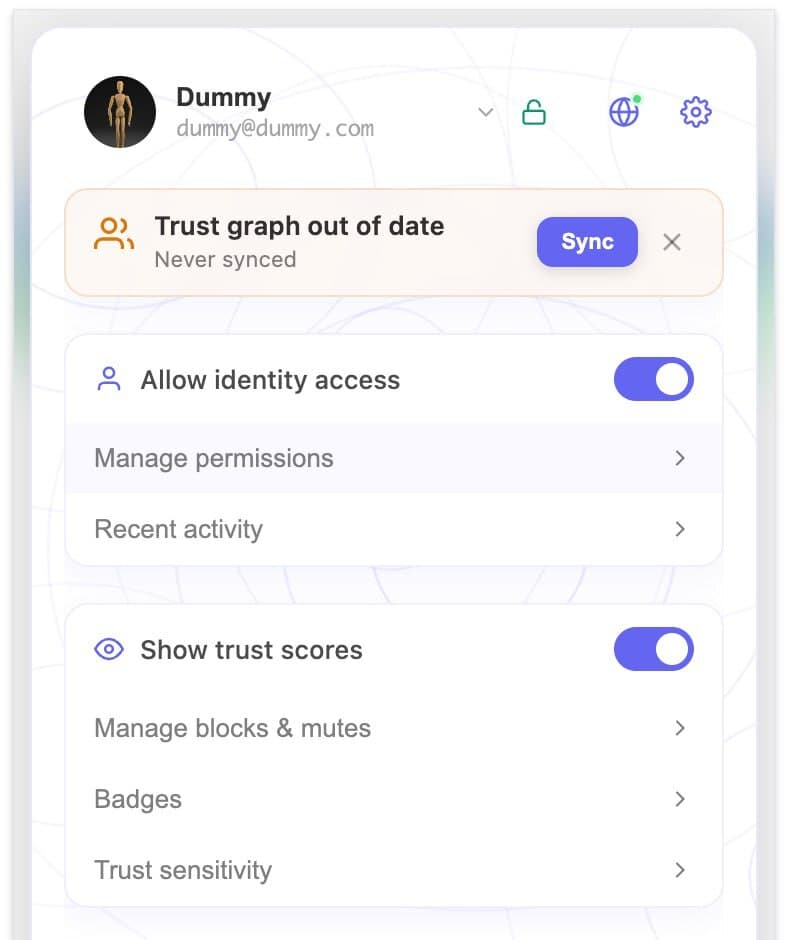 The extension popup shows your identity status, trust graph sync state, and quick access to permissions and trust settings
NIP-07 is the standard that allows Nostr web applications to request signatures from a browser extension without ever seeing your private key. When you visit a Nostr client like Primal, Snort, or Coracle, it can ask the extension to sign events on your behalf.
Here is how it works in practice:
- A website calls
window.nostr.getPublicKey()to identify you. - When you post a note or update your profile, the site sends the unsigned event to the extension.
- You see a permission prompt. If you approve, the extension signs it with your private key and sends back the signature.
- Your private key never leaves the extension.
If you previously used another NIP-07 extension like nos2x or Alby, disable it before using Nostr WoT. Only one NIP-07 signer should be active at a time to avoid conflicts.
Managing Your Nostr Profile
Your profile details — display name, bio, avatar, Lightning Address, and NIP-05 identifier — are stored on Nostr relays as a kind 0 event. The extension lets you view and edit these details directly.
Viewing Your Profile
Click the extension icon and navigate to the Identity tab. You will see your current profile information, your npub, and the relays your profile is published to.
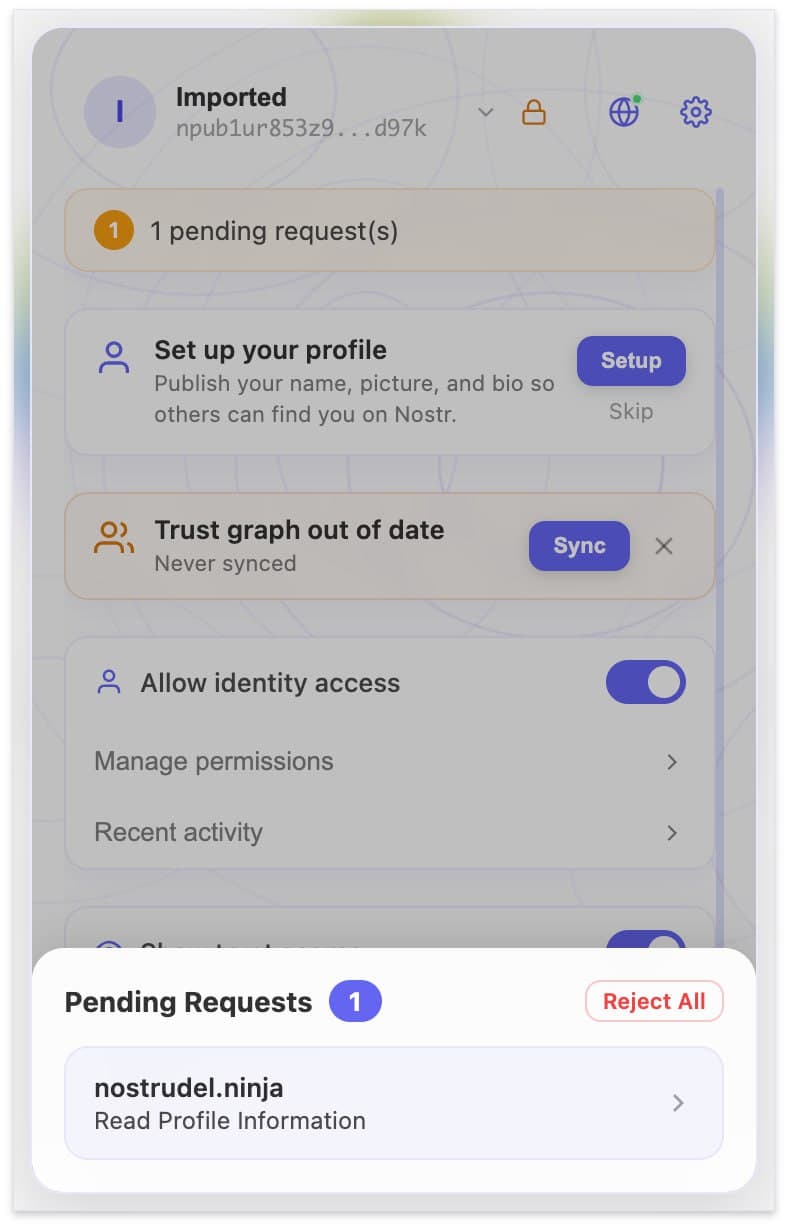 The Identity tab shows your npub, profile setup status, trust graph sync state, and quick links to manage permissions and recent activity
 Your profile preview shows display name, bio, NIP-05 identifier, Lightning address, and website — exactly how other Nostr users will see you
Editing Your Profile
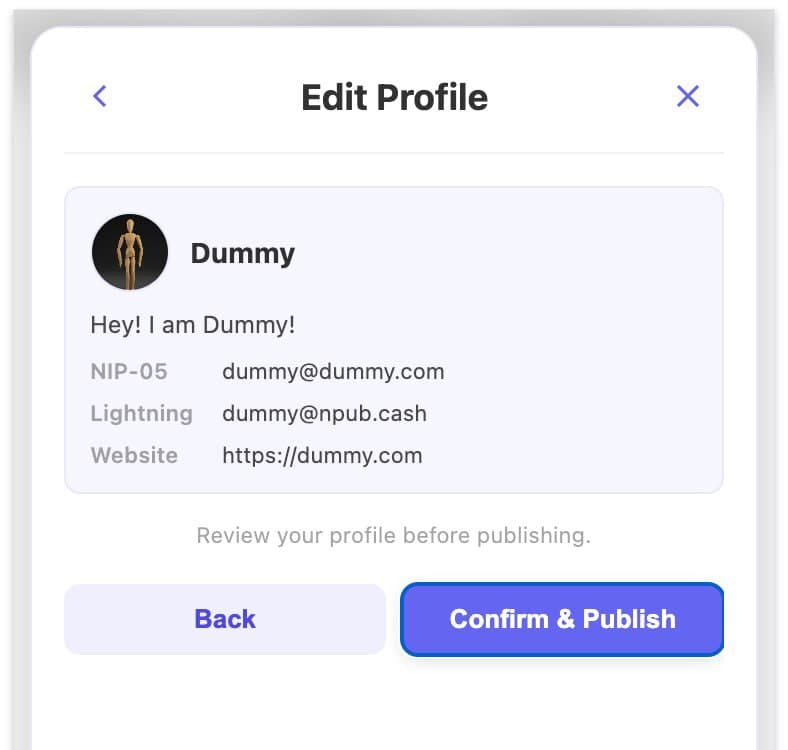 Review your profile before publishing — confirm display name, bio, NIP-05, Lightning address, and website, then click Confirm & Publish to sign and broadcast your kind 0 event
- Click Edit Profile on the Identity tab.
- Update any fields you want to change.
- Click Save. The extension signs a new kind 0 event and publishes it to your relays.
Changes propagate across Nostr clients within seconds as relays distribute the updated event.
Key Security Best Practices
Your seed phrase and nsec (private key) are the single most important pieces of data in your Nostr identity. Anyone who has either one controls your account — they can post as you, change your profile, and access your contacts. There is no password reset, no support team to call.
Storage
- The extension encrypts your keys locally using your encryption password. They are never stored in plain text.
- Back up your 12-word seed phrase in a password manager or write it on paper and store it somewhere safe.
- Never share your seed phrase or nsec with anyone, paste them into a website, or send them in a DM.
Encryption Password
- Choose a strong, unique password when setting up the extension.
- The extension locks after a period of inactivity. You will need this password to unlock it.
- If you forget this password, you can restore access using your 12-word seed phrase.
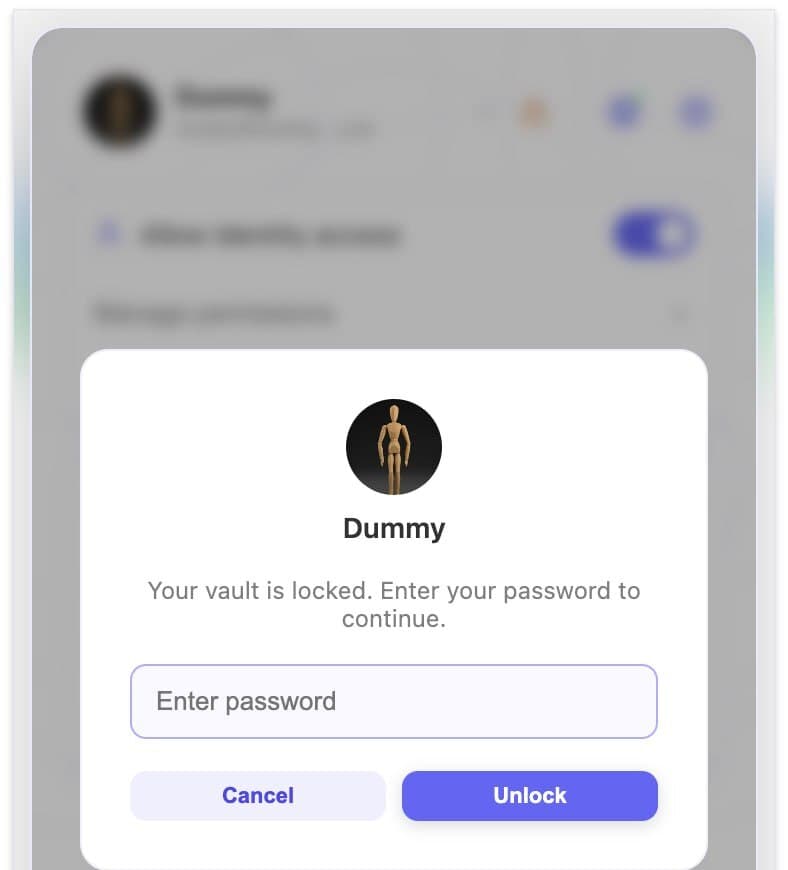 When the vault is locked, enter your encryption password to unlock — your private keys never leave the extension
Multiple Devices
If you use the extension on multiple browsers or machines, restore from your 12-word seed phrase on each one. Your identity is tied to your key pair, not to any single device.
Your seed phrase works independently of any single browser or device. Keep it in a safe place and you can always restore your full Nostr identity.
Switching Between Identities
The extension supports multiple identities. If you manage more than one Nostr account, switch between them from the Identity tab by clicking your profile avatar. Each identity has its own trust graph, wallet, and permission settings.
What's Next?
With your identity secured, it is time to understand how the extension uses it to build your Web of Trust. If you want to connect a wallet, jump to Setting Up Your Wallet.