Getting Started with Nostr WoT
Everything you need to install the Nostr WoT Extension and get your first trust network up and running.
This guide walks you through installing the Nostr WoT Extension, setting up your identity, and getting your trust network running. The whole process takes about two minutes.
Installing the Extension
The extension supports all major Chromium-based browsers and Firefox. Pick your browser and follow the steps below.
Chrome, Brave, Edge, and Opera
- Visit the download page and click the link for the Chrome Web Store.
- Click Add to Chrome (or the equivalent button in your browser).
- Confirm the installation when prompted.
- Pin the extension to your toolbar for easy access — click the puzzle piece icon in your browser and toggle the pin next to Nostr WoT.
Firefox
- Visit the download page and click the link for Firefox Add-ons.
- Click Add to Firefox and confirm the permissions prompt.
- Pin the extension to your toolbar by right-clicking the icon and selecting Pin to Toolbar.
After installation, the extension icon will appear in your browser toolbar. A gray icon means you are not yet signed in. It turns purple once your identity is active.
First-Time Setup
When you open the extension for the first time, the setup wizard walks you through the essentials. You will be asked to either create a new Nostr identity or import an existing one. No account registration with any third party is required.
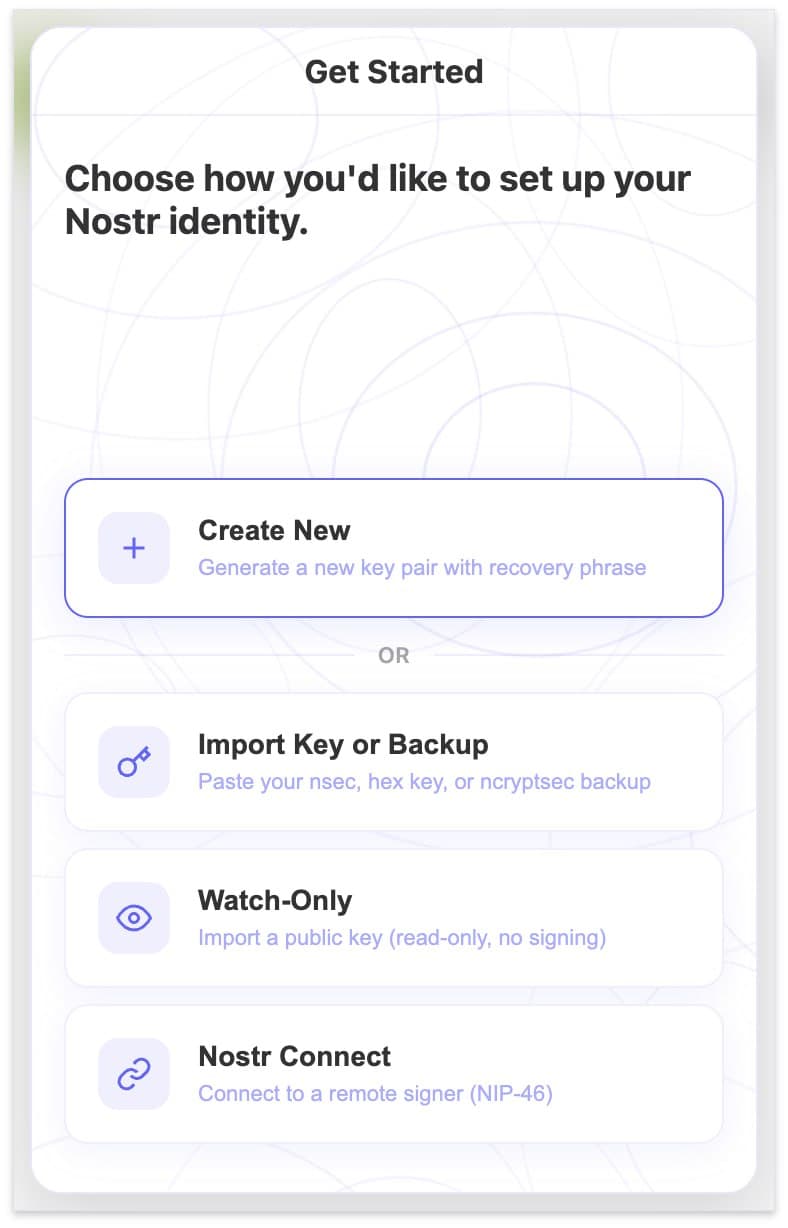 The first-time setup wizard offers four options: create a new identity, import an existing key, watch-only mode, or connect via Nostr Connect (NIP-46) for remote signing — keeping your private key in a separate signing app like nsecBunker or Amber
Creating a New Nostr Key
If you are new to Nostr, select Create New Keys. The extension generates a 12-word seed phrase (BIP39) and derives your Nostr keys from it. Your private key (nsec) and public key (npub) are both derived from this seed — you never need to handle the raw nsec directly.
- Click Create New Keys in the setup wizard.
- The extension displays your 12-word seed phrase. Write it down on paper and store it somewhere safe — a secure physical location or a password manager. If you lose it, there is no "forgot password" option. No one can recover it for you.
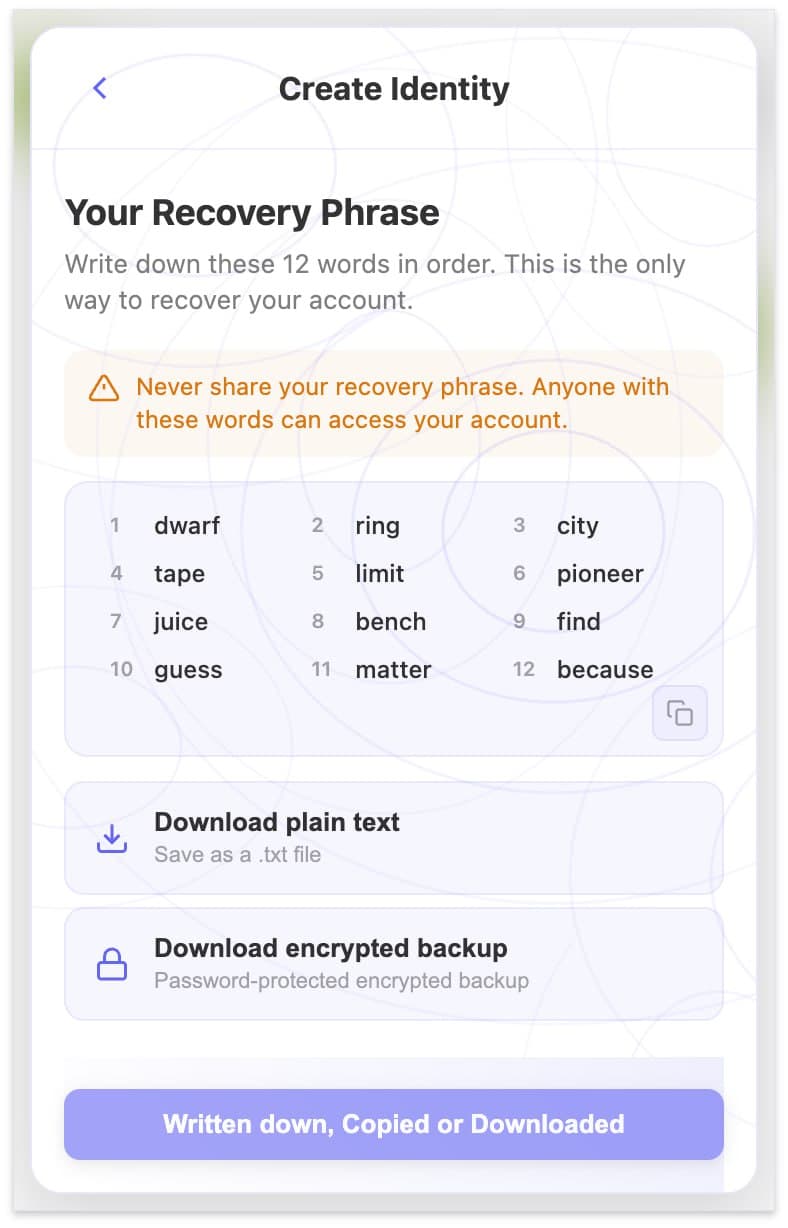 Your 12-word recovery phrase is displayed once. Write it down, download it as plain text, or save an encrypted backup before confirming.
- Confirm you have saved the seed phrase before proceeding.
- Set a local password to encrypt your keys inside the extension. This password is never sent anywhere.
- Optionally fill in your profile details — display name, bio, and avatar.
Your 12-word seed phrase is the master key to your Nostr identity. Anyone with access to it controls your account. Store it offline, never paste it into a website, and never share it with anyone — including the Nostr WoT team.
Importing an Existing Key
Already have a Nostr identity? Select Import Existing Key. You can restore using your 12-word seed phrase (if you created your key with Nostr WoT) or paste your nsec directly. If you prefer to keep your private key in a remote signing app, choose Nostr Connect (NIP-46) from the setup wizard instead — this lets you connect a bunker like nsecBunker or Amber without exposing your key.
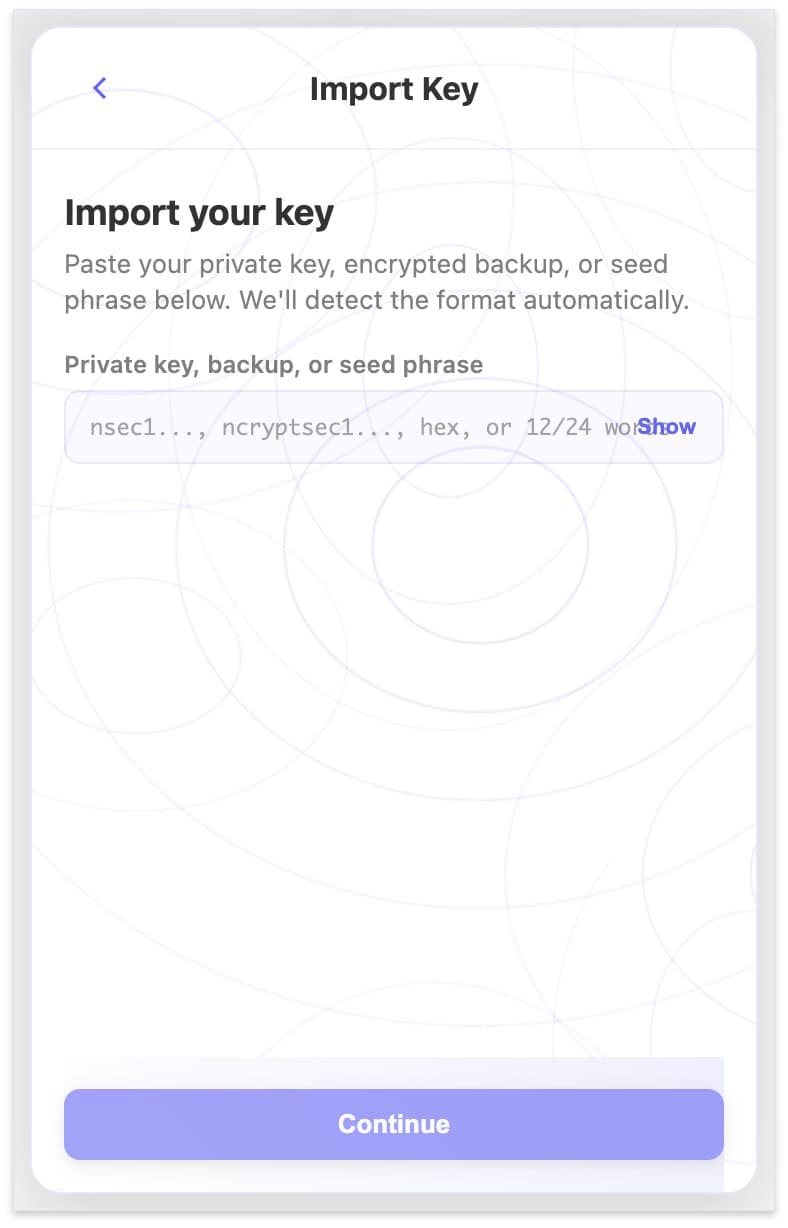 The import screen accepts your nsec, ncryptsec, hex private key, or 12/24-word seed phrase — the format is detected automatically
- Click Import Existing Key.
- Enter your 12-word seed phrase or paste your nsec private key.
- Set a local encryption password.
- The extension fetches your profile from Nostr relays automatically.
Verifying Your Setup
Once your identity is active, click the extension icon. You should see your profile details, your npub, and an initial trust graph that starts building from your follow list. The extension fetches your contacts from relays and begins mapping your Web of Trust.
Give it a minute or two for the initial sync. After that, your trust network updates in the background as you browse.
Post Something
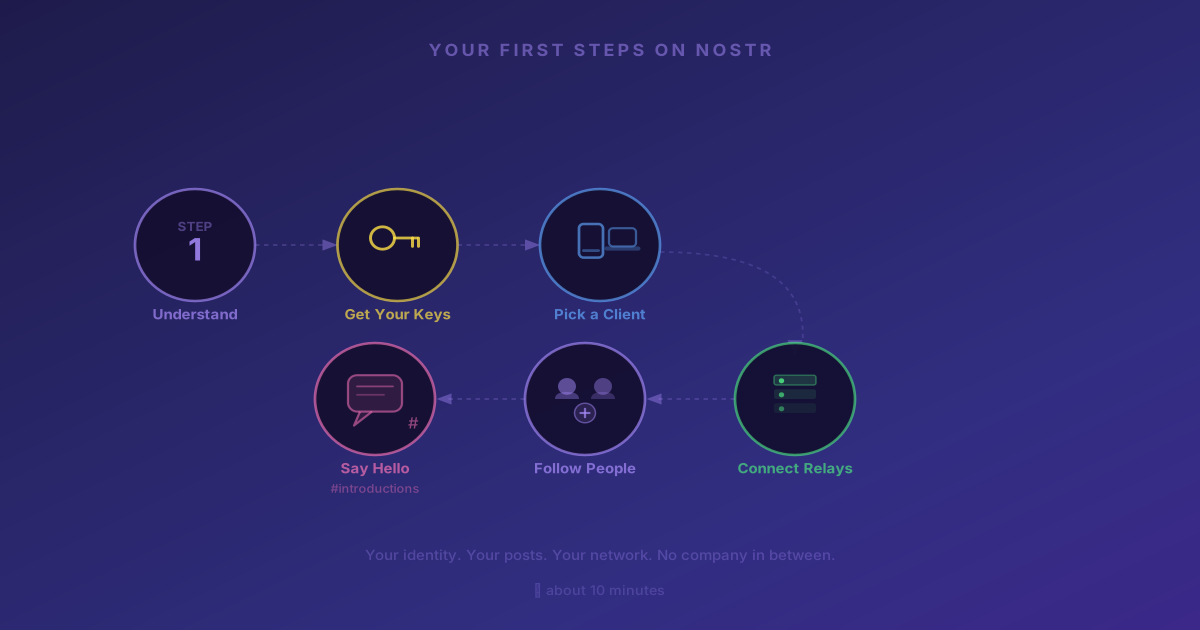
You're set up. Say hello. The Nostr community actively welcomes newcomers.
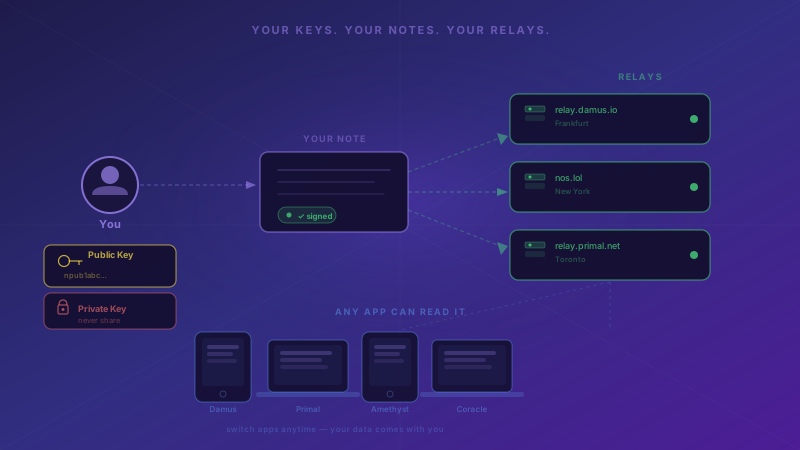
Open any Nostr client — Primal, Snort, or any other — and write your first post. Add the hashtag #introductions so others know you're new. Your post goes out to your connected relays. Anyone following you — or browsing those relays — can see it. No algorithm decides who sees your content.
Zaps
Nostr supports instant Bitcoin micropayments called "zaps." You can tip posts you like directly from any Nostr client. The Nostr WoT Extension lets you set up a Lightning wallet right from the extension — no third-party app required. Check the Lightning wallet setup guide whenever you're ready.
What's Next?
Now that the extension is installed, learn how to manage your identity and understand how the Web of Trust works.