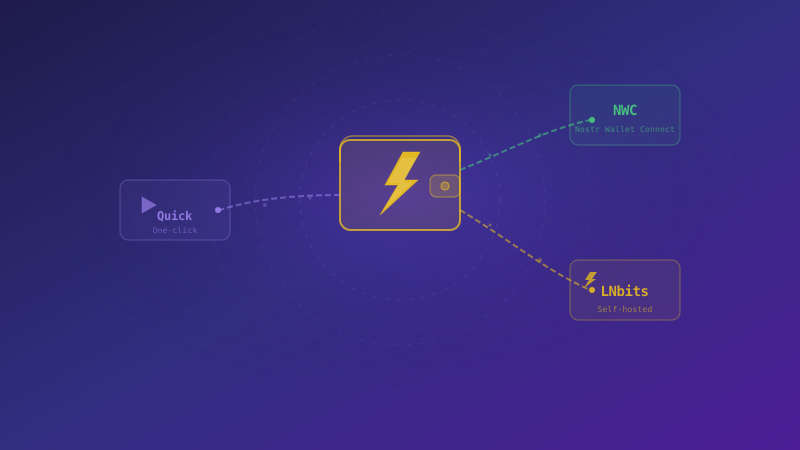
Connect Alby Hub with NWC
Connect Alby Hub to Nostr WoT with a dedicated NWC connection. Choose permissions, check your balance, and manage access in your Hub.
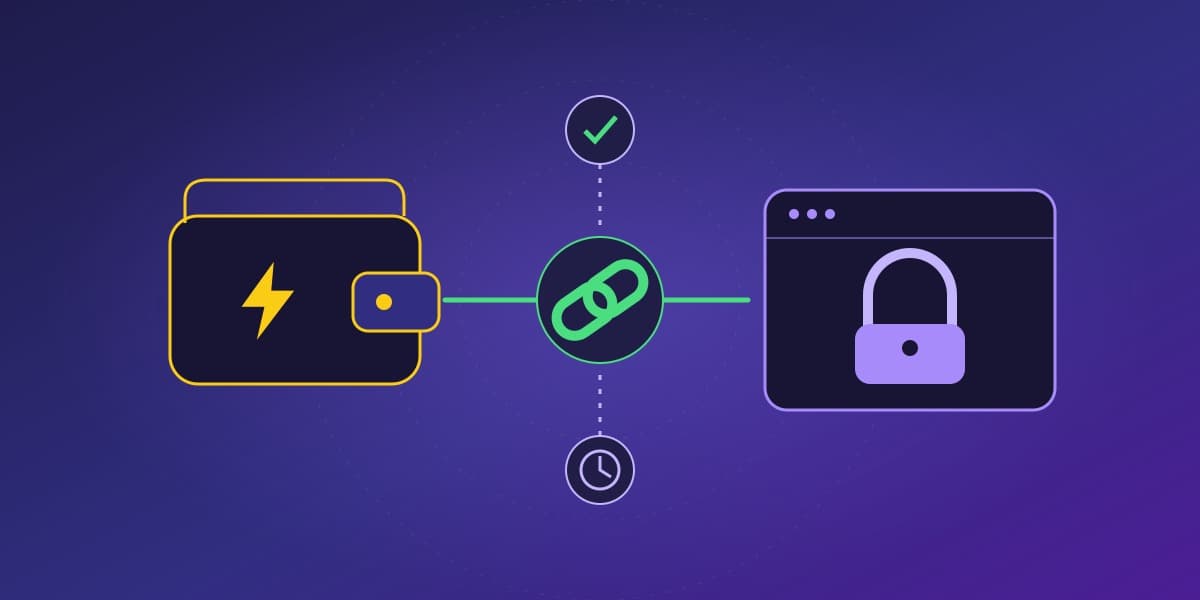
Alby Hub can connect your existing Lightning wallet to the Nostr WoT Extension through Nostr Wallet Connect (NWC). Start with an Alby Hub that is already running, reachable, and funded. This guide covers connecting that wallet, not installing Hub or opening Lightning channels.
Create a connection in Alby Hub
Open your Hub and go to Connections → Add Connection. Give this connection a recognizable name, such as “Nostr WoT browser”. A separate connection makes it easier to identify its activity and withdraw access later. Alby's app connections guide explains its permission, budget, and expiration controls.
Choose permissions for the features you want:
- Wallet information (
get_info) is required for the extension's connection check. - Balance (
get_balance) lets the extension display your sats. - Payments (
pay_invoice) allows sending payments. - Invoices (
make_invoice,lookup_invoice) supports creating and checking deposit invoices. - History (
list_transactions) lets the extension show recent transactions.
Set a spending budget you are comfortable granting to this browser connection. Review whether it renews, and choose an expiration date if appropriate. A budget set in Hub and an automatic approval threshold in the extension are separate controls. Check both before enabling unattended payments.
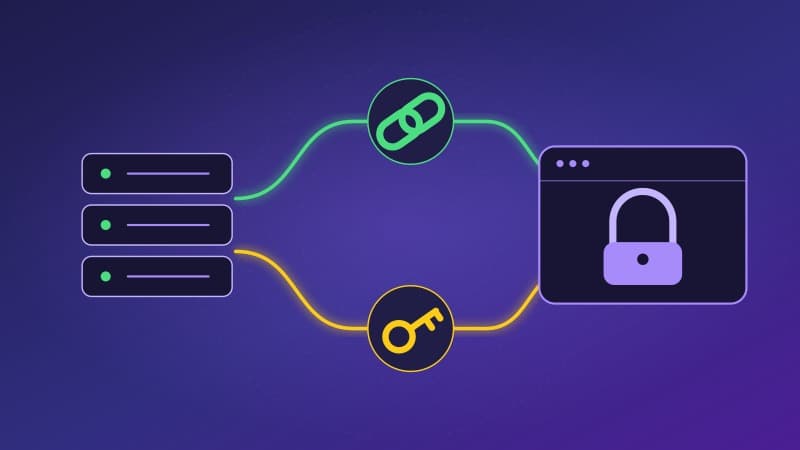
Paste the NWC connection secret
Complete the connection in Hub and copy the full URI beginning with nostr+walletconnect://.
The URI is a credential. Anyone holding it may exercise its granted permissions. Keep it out of screenshots, support messages, shared documents, and public posts.
Open the Nostr WoT Extension, go to Wallet, select NWC, paste the URI, and connect. The first-use help popup explains the available wallet options. Its opt-out lets you stop showing that help automatically; it does not change wallet permissions.
Alby's NWC link tutorial demonstrates pairing with Alby's own extension. For Nostr WoT, use the Wallet → NWC steps above.
Verify access without sending a payment
If you granted balance access, compare the displayed balance with Hub. Check history if you enabled that permission. Connecting does not require a test payment. If a feature fails, review its permission and the connection's expiration in Hub before replacing the secret.
NWC describes the connection between applications. Custody and fund recovery depend on your wallet and hosting arrangement; choosing a protocol alone does not determine them.
If a payment reports an unknown outcome, check Hub's payment history before starting another attempt. A missing reply does not establish that payment failed. To withdraw access, revoke this app connection in Hub; disconnecting the extension alone is not a substitute.
Return to the wallet overview, or follow the LNbits setup guide for that provider.