Zapping and Auto-Approve
Zap notes without switching apps. Learn how WebLN works in the extension and how auto-approve makes small zaps instant.
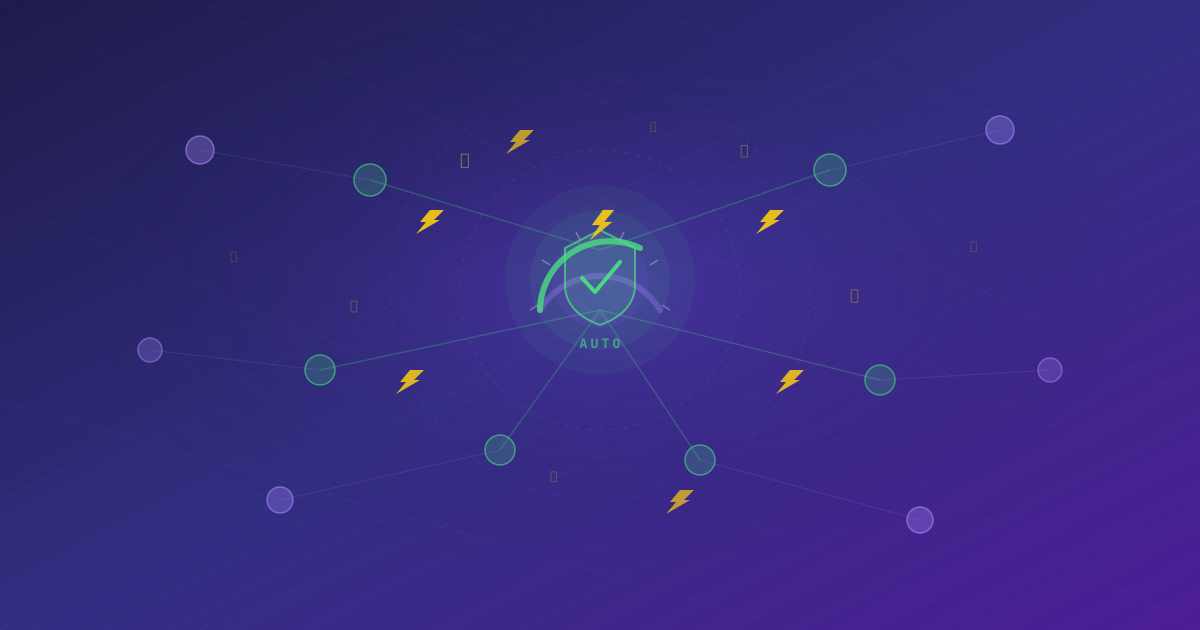
Zapping is one of the best parts of Nostr — you see a great note, you send some sats, the person gets rewarded. The extension makes this seamless by acting as a WebLN provider, and auto-approve takes it a step further by removing the confirmation step for small amounts.
What Is WebLN?
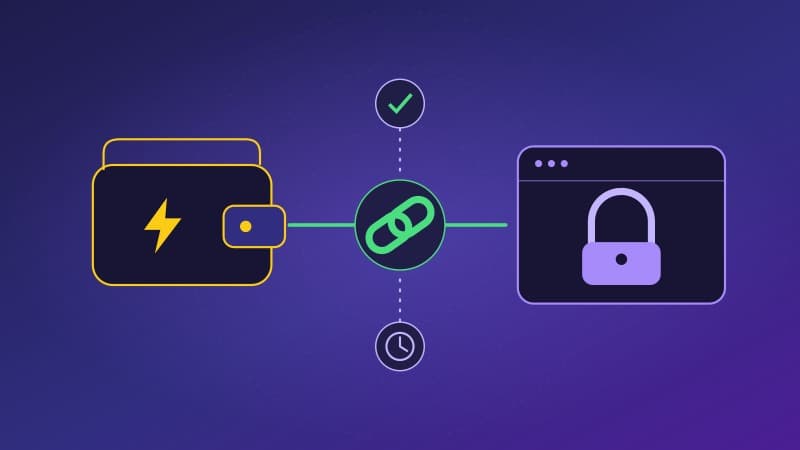
WebLN is a standard that lets websites request Lightning payments through a browser extension. When a Nostr client wants to send a zap, it calls window.webln.sendPayment() and the extension handles the rest.
You do not need to configure anything for WebLN to work. Once your wallet is connected, the extension automatically registers itself as the WebLN provider for any site you visit.
How Zapping Works
Here is the flow when you zap a note on a Nostr client:
- You click the zap button on a note and choose an amount.
- The Nostr client creates a Lightning invoice and sends it to the extension via WebLN.
- The extension shows you a confirmation popup with the amount, recipient, and the note being zapped.
- You click Approve, the extension pays the invoice from your connected wallet.
- The zap event is published to Nostr, and the recipient sees it.
The entire process happens within your browser. No switching to a separate wallet app, no copying invoices.
If you see "No WebLN provider found" on a Nostr client, make sure the extension is unlocked and a wallet is connected. Some clients may need a page refresh to detect the provider.
Setting Up Auto-Approve
For frequent zappers, confirming every 21-sat zap gets tedious. Auto-approve lets you set a threshold — any zap at or below that amount goes through instantly without a popup.
Configuring the Threshold
- Click the extension icon and go to the Wallet tab.
- Open Settings.
- Find the Auto-Approve Threshold field.
- Enter your preferred amount in sats. For example,
100means any zap of 100 sats or less is approved automatically. - Save. The setting takes effect immediately.
How It Works
When a site requests a payment via WebLN:
- If the amount is at or below your threshold, the extension pays it silently. No popup, no interruption.
- If the amount is above your threshold, you see the normal confirmation popup.
- If auto-approve is set to
0, every payment requires manual approval.
This means you can scroll through your feed, zap notes freely with small amounts, and never break your flow. Larger payments still require your explicit approval for safety.
Per-Site Behavior
Auto-approve respects the extension's site permissions. If a site does not have WebLN permission, auto-approve does not apply — the site cannot request payments at all.
Monitoring Your Zaps
Every zap, whether auto-approved or manually confirmed, appears in your transaction history on the Wallet tab. You can review what was sent, to whom, and when.
If you notice unexpected auto-approved payments, lower your threshold or revoke the site's WebLN permission.
Recommended Thresholds
- 21 sats — the classic Nostr micro-zap. Conservative and safe.
- 100 sats — covers most casual zapping.
- 500 sats — for power users who zap frequently.
- 0 sats — disables auto-approve entirely.
Start with a lower threshold and increase it once you are comfortable with the flow. You can always change it from the wallet settings.
What's Next?
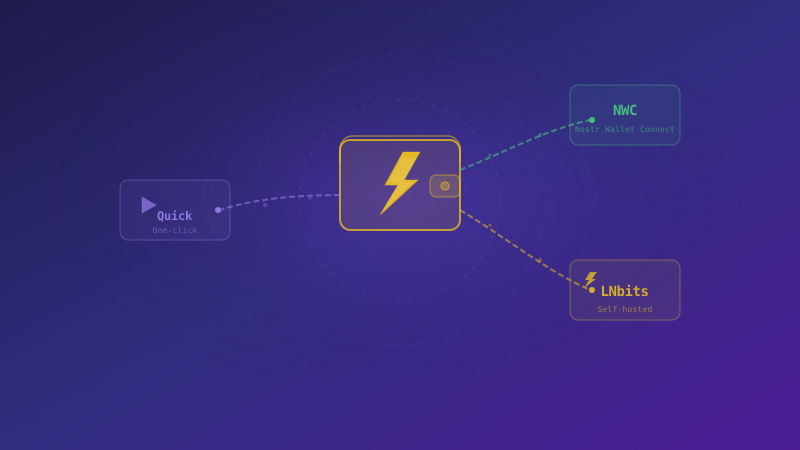
If you set up your wallet with Quick Setup, you can claim your own Lightning Address. To control which sites can request payments, read about site permissions.