Change the Extension Language
Choose your interface language in Nostr WoT, apply it, and switch back whenever you like.

Change the language of the Nostr WoT extension from Settings → Appearance and language → Language. Choose a language, then select Confirm.
1. Open Settings
Open the extension from your browser toolbar. Unlock it if needed, then choose Settings using the gear icon. Open Appearance and language.
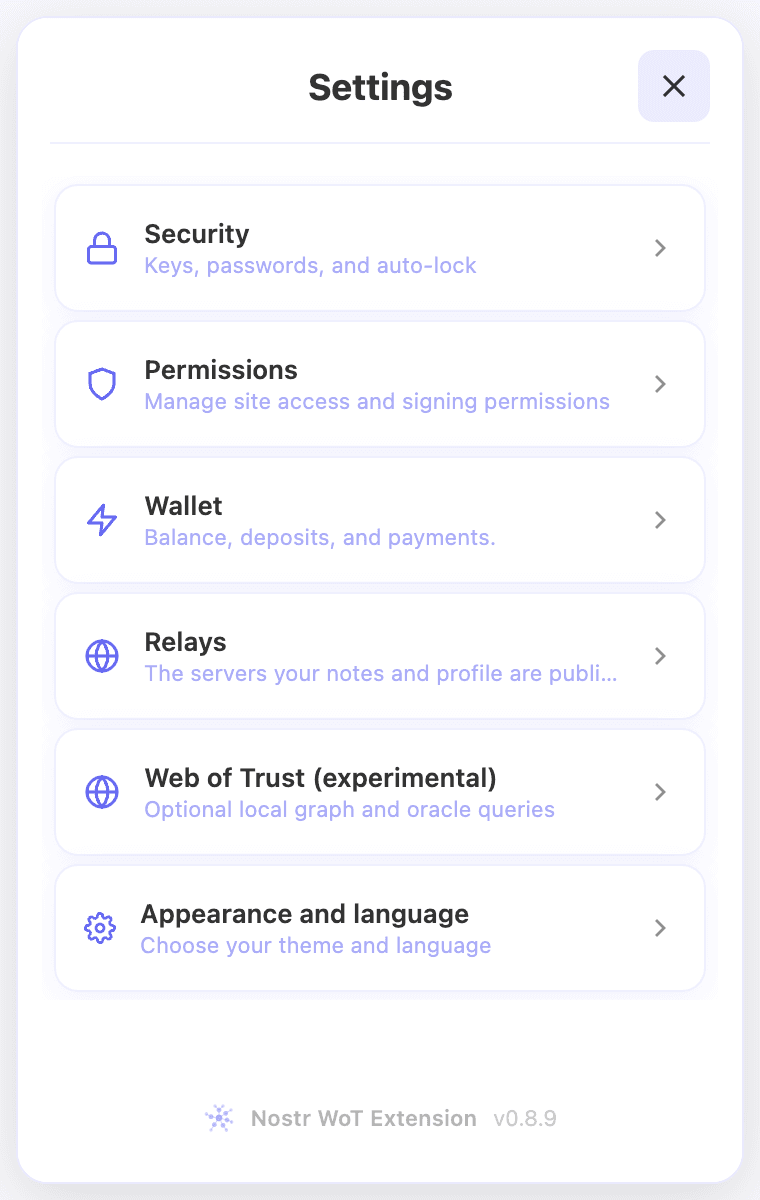 Settings with Appearance and language near the bottom
2. Open the language picker
Choose Language below the theme controls. The row shows your current language.
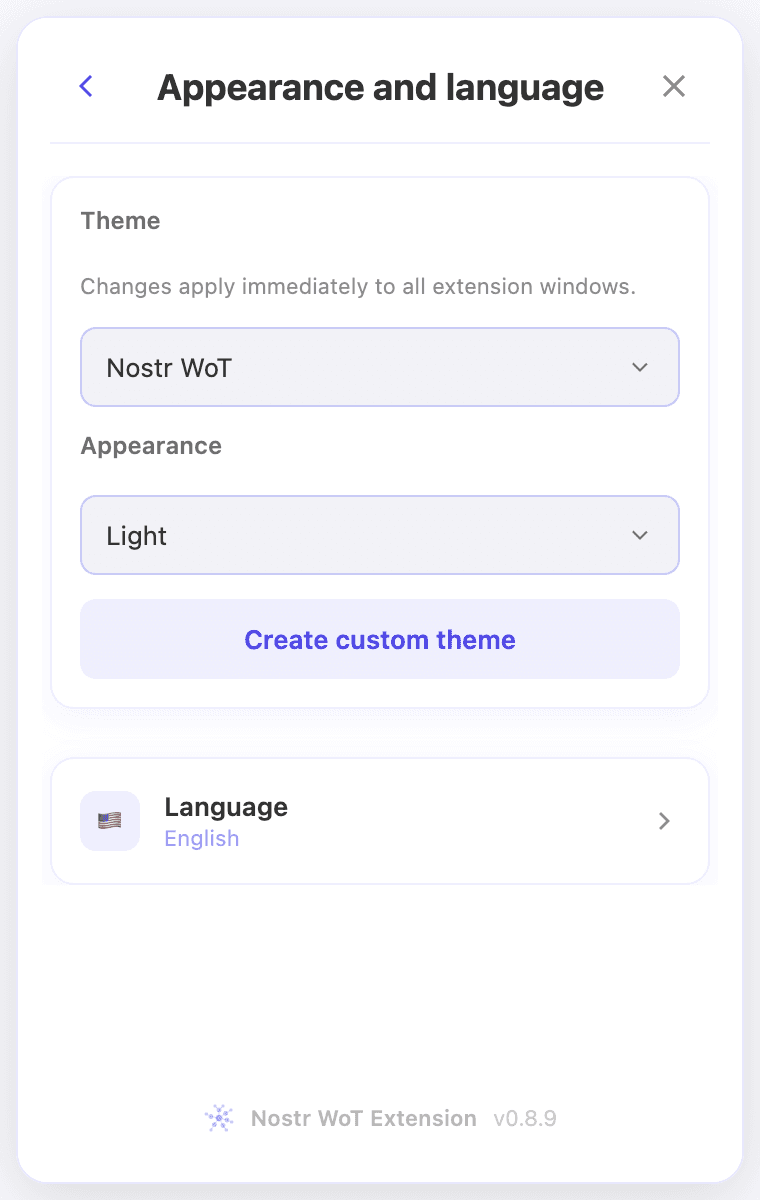 The Language row below the appearance controls
3. Choose and confirm
Scroll or drag the wheel until your language is centered. You can also focus the list and use the up and down arrow keys. The heading previews your choice before you apply it.
The available languages are English, Español, Português, Deutsch, Français and Italiano.
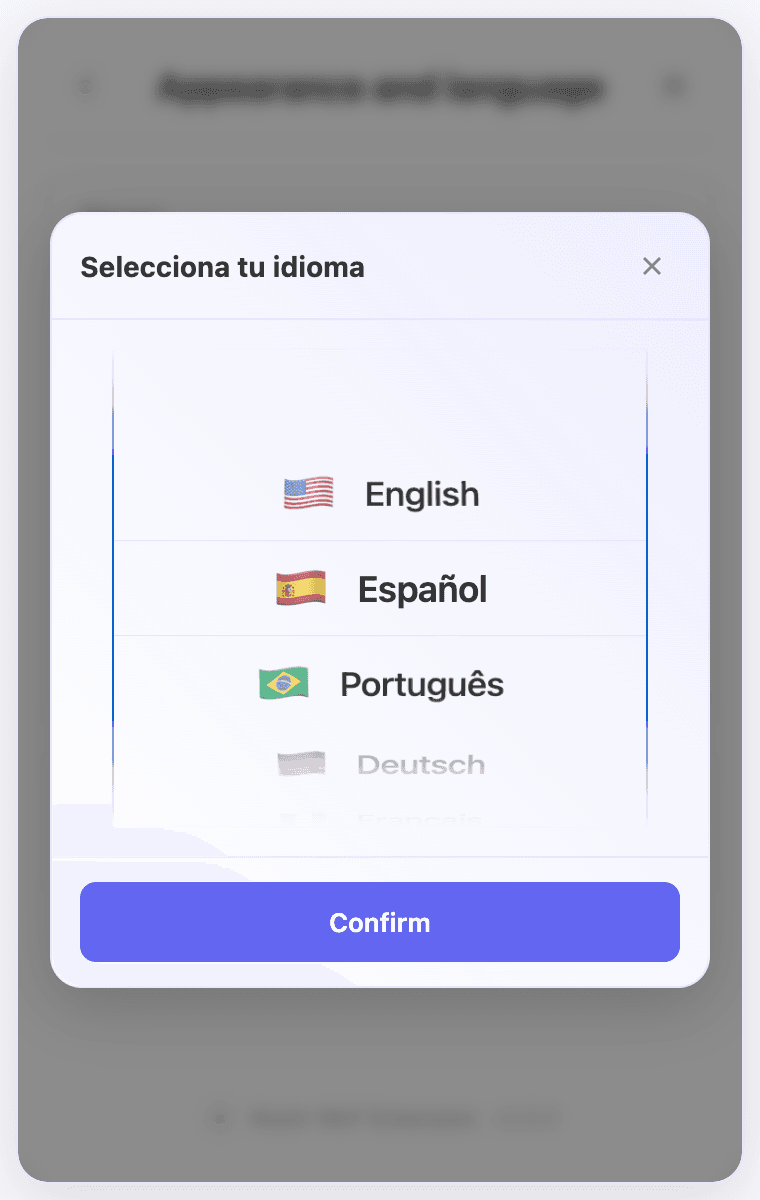 Español selected in the language wheel, with Confirm below
Select Confirm. That button uses your current interface language until you confirm; in this English-to-Spanish example it still says “Confirm.” Closing the picker without confirming keeps the previous language.
4. Check the result
The language row now shows Español, and translated interface labels update. Your choice is saved for the next time you open the extension. Some appearance labels currently remain in English.
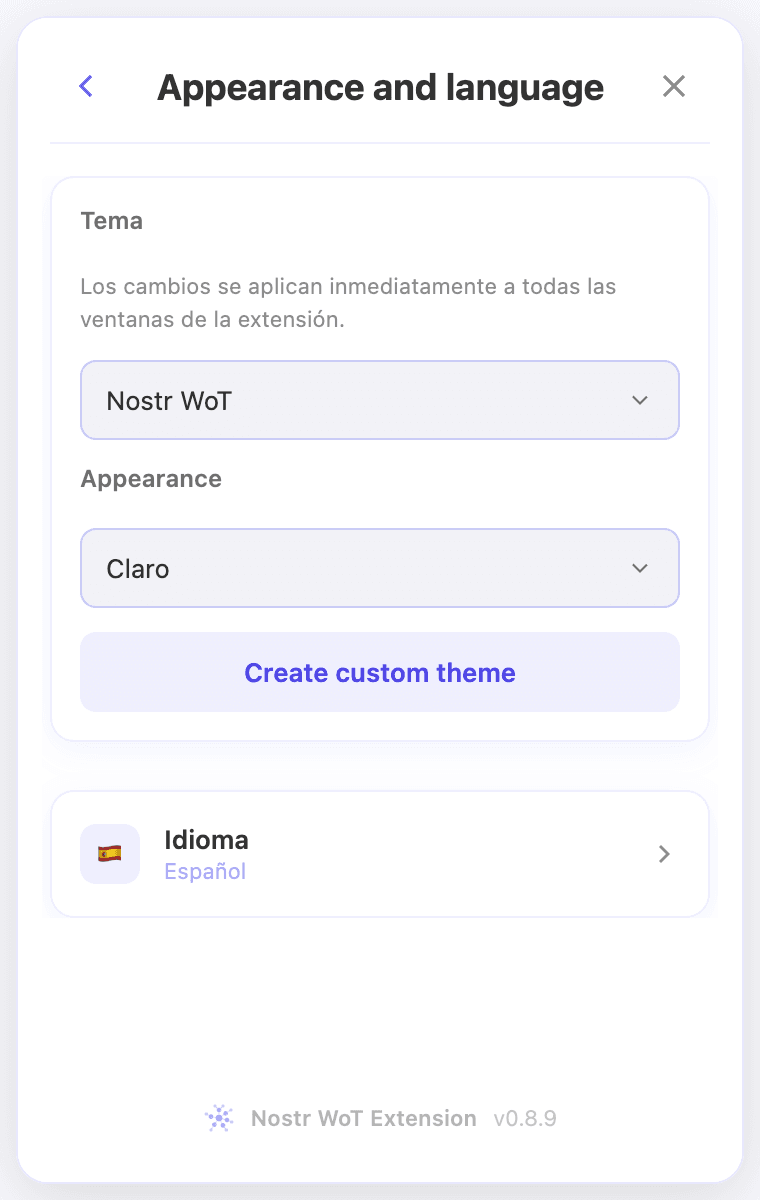 The saved language is Español and the language label is now Idioma
Switch back whenever you like
Return to the same section, open Idioma, select English, then choose Confirmar. Use the gear icon to find Settings if you do not recognize the current menu language.
Changing the interface language does not translate Nostr posts or messages, or change your accounts, keys or permissions. The website's language selector is separate from the extension's setting.
The screenshots show an English-to-Spanish change in a demo installation.
Related video walkthroughs
These videos are in English.