Removing an Account
Remove an account from the extension safely. Know what gets deleted, what stays on Nostr, and how seed-based accounts get an extra confirmation step.
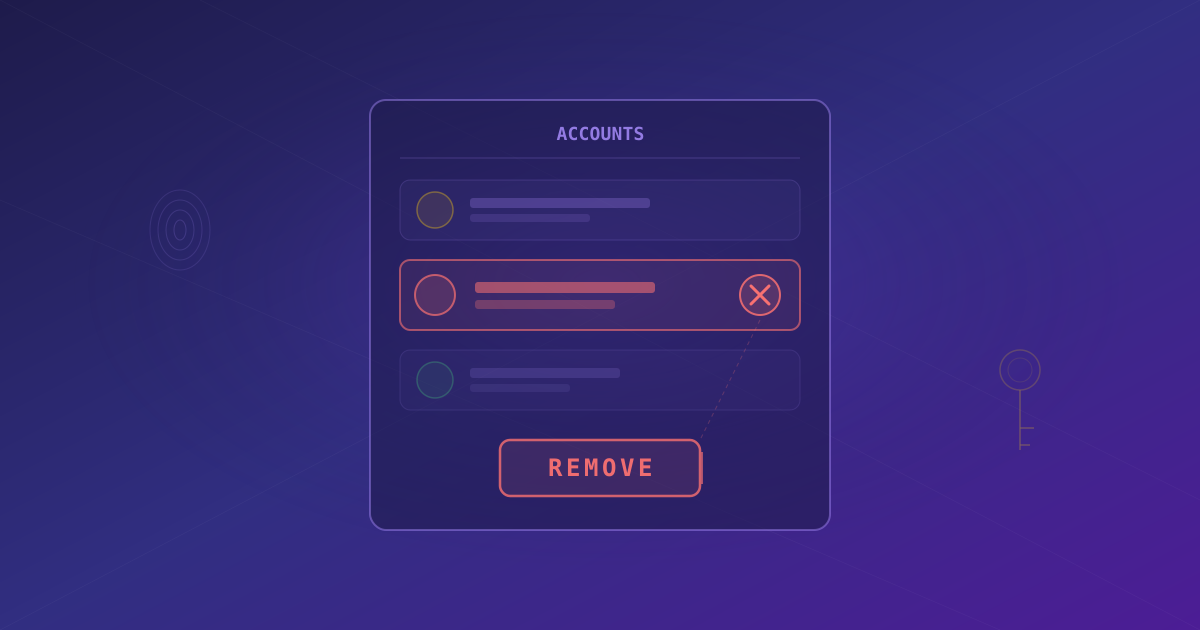
Sooner or later you will want to clean up the list of accounts in the extension — maybe an old identity you no longer use, a test account, or one you imported by mistake. The extension lets you remove accounts from the accounts selector with a single click, and applies a stricter confirmation when removing a seed-based account that only exists inside the extension.
Before You Remove an Account
Removing an account only affects the extension on this browser. Your Nostr identity is a key pair, and the events you have published live on relays across the network. They will stay there whether or not this browser remembers you.
What removal does:
- Deletes the encrypted copy of the keys stored locally in the extension.
- Removes the account from the accounts selector.
- Clears the local trust graph, permissions, and wallet state tied to that account.
What removal does not do:
- It does not delete your posts, profile, or follow list from Nostr relays.
- It does not affect the same identity on other devices or other NIP-07 signers.
If you generated your seed phrase inside the extension and never backed it up, removing the account is permanent. There is no recovery. Export or write down your 12-word seed before continuing.
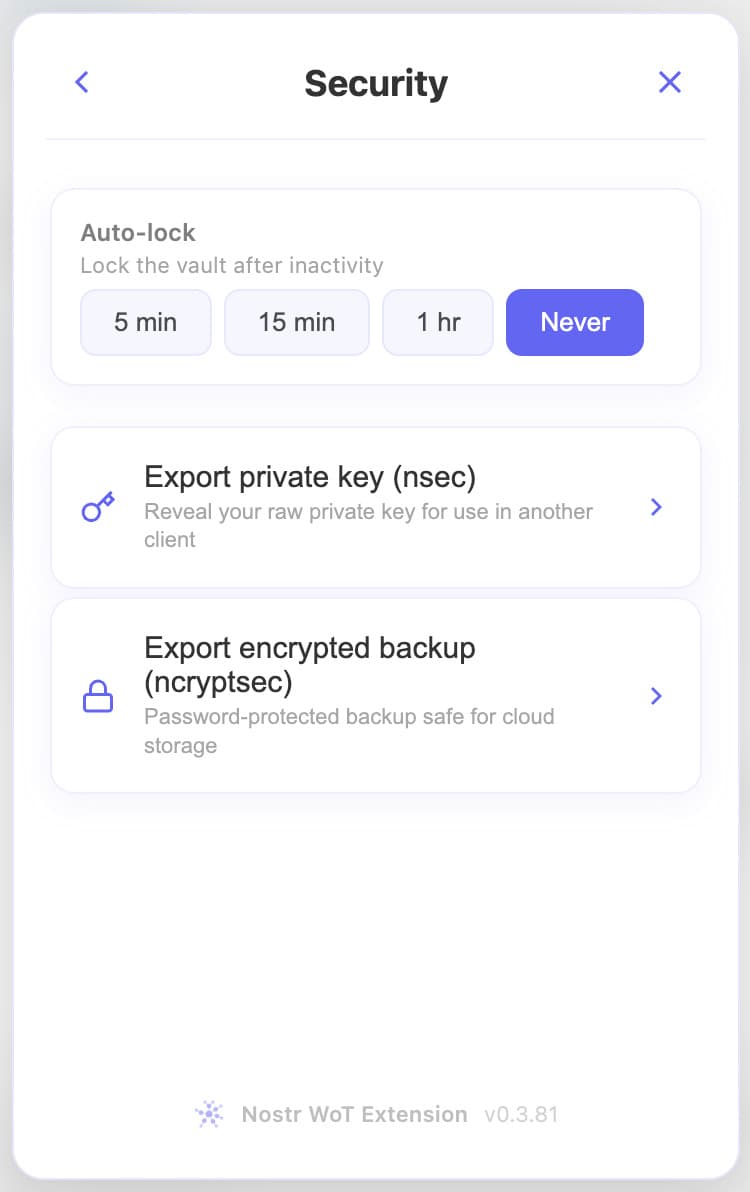 The Security screen lets you export your private key (nsec) or a password-protected encrypted backup (ncryptsec) before removing the account
Removing an Account
1. Open the Accounts Selector
Click the extension icon and open the accounts selector at the top of the popup. You will see every account the extension is currently holding, with the active one highlighted.
 The accounts selector lists every identity stored in the extension, with the active account highlighted at the top
2. Hover the Account and Click the Cross
Move your cursor over the account you want to remove. A small cross (×) icon appears on the right side of the row. Click it.
 Hovering an account row reveals a cross icon on the right — click it to start the removal flow
3. Confirm the Removal
A confirmation dialog opens. For an account you imported using an existing nsec, confirming here is enough — the extension assumes you still have the key somewhere else and can restore access later.
 The simple confirmation dialog asks you to confirm you want to remove the account from this extension
4. Seed-Based Accounts: Type REMOVE
If the account was generated inside the extension from a seed phrase, the confirmation is stricter. You are asked to type the word REMOVE (in capitals) before the button becomes active. This extra friction is there because losing the only copy of a seed is effectively losing the identity forever.
Once you confirm, the account disappears from the selector and, if it was the active one, the extension switches to another stored account or to the onboarding screen if no accounts are left.
Why Seed-Based Accounts Need a Stricter Confirmation
When you generate a new identity inside the extension, the 12-word seed is created locally and shown to you once. The extension never sends it anywhere. If you did not copy it down, the encrypted copy in the extension is the only thing that links you to that identity. Removing it without a backup means losing the ability to sign as that npub ever again.
Imported accounts are different. If you added them using an existing nsec or seed, you already have that key material stored elsewhere — in another signer, a password manager, or on paper. Restoring is straightforward.
Restoring an Account You Removed
To bring back a removed account:
- Open the accounts selector and click Add Account.
- Choose Import and paste your nsec or 12-word seed phrase.
- The extension rebuilds the encrypted keystore, resyncs the trust graph, and the account is ready to use again.
Your local history (permissions, auto-approve rules, wallet connections) is not restored — it was tied to the deleted keystore. Nostr data like your profile, follows, and notes re-syncs from relays automatically.
What's Next?
Now that you know how to remove accounts safely, make sure the ones you keep are well protected. Review key security in Managing Your Identity, or head back to Getting Started if you are rebuilding from scratch.